Unity AI Open Beta: Building a user interface with the UI Generator

Today’s entry in our Unity AI Open Beta series shows you how you can prototype UI layouts faster with Sprite and Texture generation features built into the Editor.
Prototyping a game's UI can be a tedious task. Likely you will want to use placeholder art to prototype before the actual design is final, but creating throwaway assets still takes time – and low-fidelity boxes and rectangles only tell you so much about how a layout will feel.
Unity AI’s generators change this. The Sprite Generator and Texture Generator, used together with the Unity AI Assistant, let you produce UI placeholders from text prompts directly in the Editor – so you can lay out a real UI with real-looking designs before a single piece of final artwork exists.
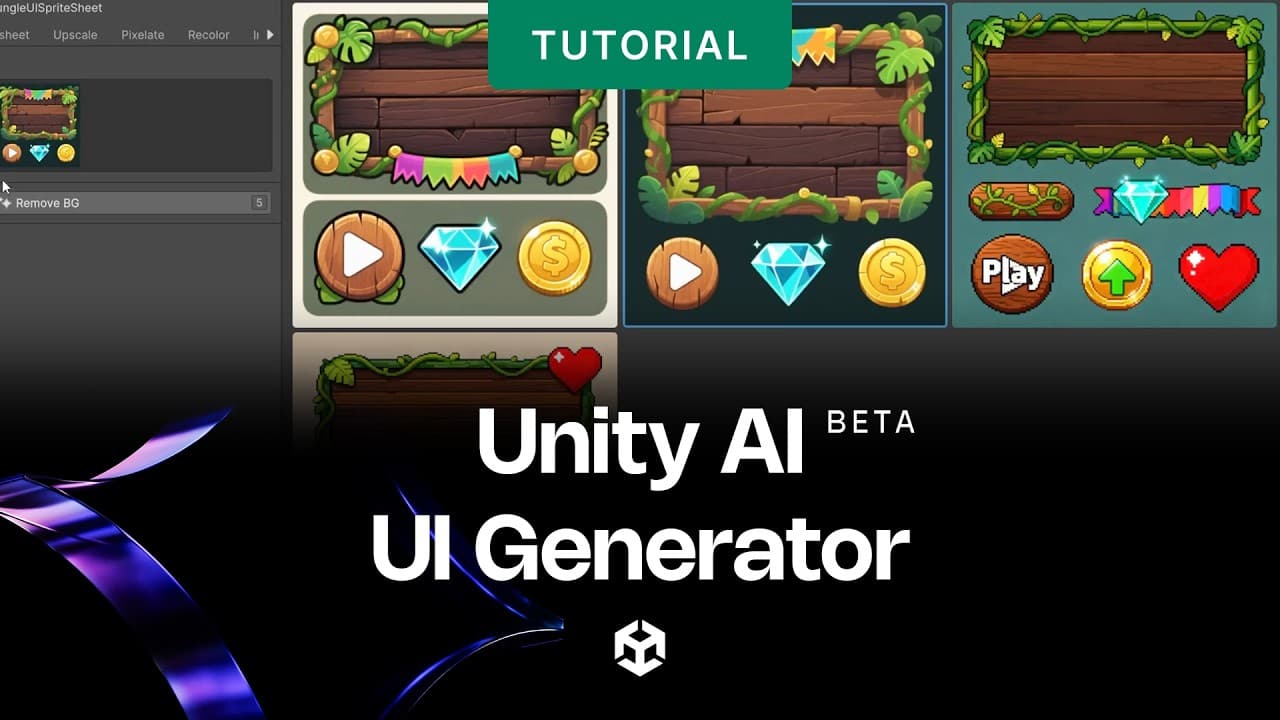
What is Unity AI’s UI Generator?
The UI Generator isn’t a single tool – it’s a workflow that combines two of Unity AI’s asset generators with the AI Assistant to rapidly produce UI-ready content:
- Sprite Generator is for generating discrete 2D sprite assets, such as icons, characters, items, decals, portraits, and UI graphics.
- Texture2D Generator is for generating general 2D image/texture assets, such as backgrounds, billboards, panel fills, backdrops, or images used on materials and surfaces. For seamless physical surface materials, use the Material Generator instead.
Both generators are available inside the Unity Editor as part of the Unity AI suite. The assets they produce are saved to your project’s Assets folder and are tagged with embedded metadata identifying them as AI-generated, so you can find and swap them out with final artwork later.

Generating a sprite sheet with a prompt
Sprite Generator
The Sprite Generator produces 2D images from natural-language descriptions. You describe what you want, select a style model, and the generator returns a sprite you can add directly to your UI canvas.
What you can control
- Prompt: describe the asset in plain English: “health bar icon, pixel art style, red heart”
- Style model: choose from pre-trained models covering various art styles such as pixel art, anime, concept art, and more
- Negative prompt: exclude unwanted elements: “no text, no border, no background”
- Reference image: provide an existing image to guide the output style or character consistency
Generated sprites are tagged as AI-generated in the Editor. They work like any other sprite in Unity – assign them to Image components, use them in sprite atlases, or reference them in code.

A set of prototype UI icons generated from a prompt
Texture Generator
The Texture Generator produces images suitable for use as UI backgrounds, panel fills, and surface textures. It follows the same prompt-based workflow as the Sprite Generator and produces assets that drop straight into your project.
For UI work, this is most useful for:
- Background panels: “dark stone texture, fantasy RPG style, tileable”
- HUD fills: “brushed metal, dark, subtle gradient, sci-fi”
- In-world UI surfaces: “worn parchment, aged, with faint map markings”

Prototype UI backgrounds generated from a prompt
The prototyping workflow
Here is how the Sprite and Texture generators fit into a real UI prototyping session:
1. Set up your uGUI Canvas or UI Toolkit document
The tooling supports both uGUI and UI Toolkit. The workflows are very similar, so using uGUI, you first want to create a UI Canvas and rough out your layout with Unity's standard UI components – Image, Text, Button. Use placeholder colors or white boxes to define the structure.
2. Generate your sprite assets
Open the Sprite Generator from the Unity AI menu. For each UI element that needs an icon or image, write a prompt describing it and select your style. Download and assign each generated sprite to the relevant Image component.
3. Generate background textures
Use the Texture Generator for panels and backgrounds. Describe the visual style you want and apply the generated texture as a sprite or texture reference on your Image or RawImage components.
4. Use the Unity AI Assistant to wire it up
Switch to the Unity AI Assistant and ask it to help wire the UI – connecting button events, setting up layout groups, or writing a script to populate a list dynamically. The Unity AI Assistant knows your Canvas structure and can act directly on your scene.
5. Iterate quickly
Regenerate any asset that does not look right. Because the workflow is prompt-based, you can produce a new version in seconds and swap it out without disrupting your layout.

A completed UI prototype combining AI-generated sprites and textures
Managing AI-generated assets
All assets produced by Unity AI Generators carry embedded metadata flagging them as AI-generated. This makes them easy to find and filter as the project grows – you can search for AI-generated assets in the Project window and replace them with final artwork systematically.
Generators can be disabled entirely in the Unity Dashboard if you want to use the Unity AI Assistant without asset generation. You are responsible for verifying usage rights for generated content and making the appropriate declarations when submitting your project to app stores and other digital storefronts like Steam.

A selection of generated assets tagged with the Unity AI label
More on Unity AI
If you’re interested in reading more about what’s available in the Unity AI Open Beta, we invite you to read other articles in this series:
- Introducing Unity AI Open Beta
- The Unity AI Assistant, explained
- How to get started with Unity MCP
- Create props with the 3D Object Generator
- Create PBR materials from a text prompt using the Material Generator
- Create skyboxes and environment reflections with the Cubemap Generator
- Using Sprite Generator to create 2D sprites, icons, and spritesheets
Try Unity AI today
Unity AI open beta is available now for all Unity 6 developers. Sign up for a free trial, explore the Unity AI Assistant, connect your preferred tools via the Unity AI Gateway, and start experimenting with what your development workflow looks like with a project-aware AI agent built in.
Sign up and learn more about plans, pricing, and data privacy at unity.com/features/ai
Full documentation is available in the Unity AI docs linked from the Editor or at docs.unity3d.com.
Unity AI Assistant is currently in open beta. As such, features, behavior, and availability described in this post are under active development and may change, be limited, or be discontinued without notice.