Unity's AI tools in beta: How to get started with MCP

In today’s article on Unity’s AI tools in beta, learn how to connect Claude Code, Github Copilot, and other AI agents directly to the Unity Editor with the Model Context Protocol (MCP) Server.
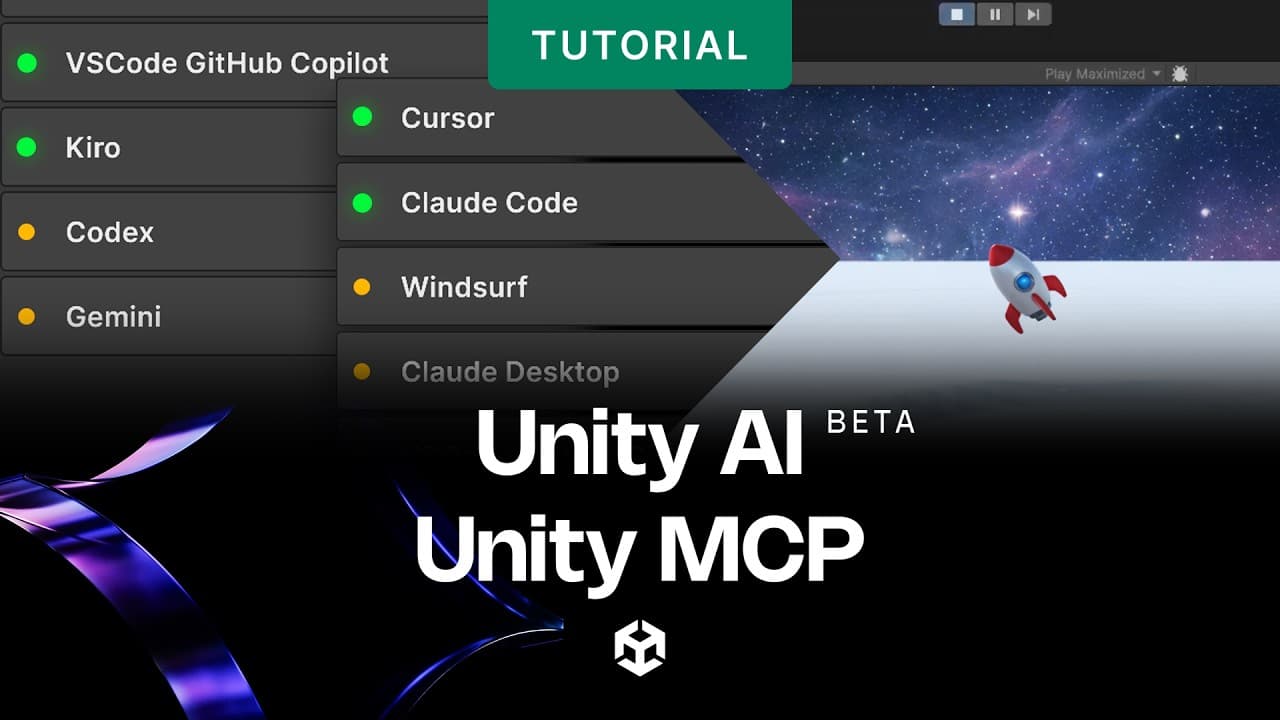
The Unity AI open beta's MCP Server opens up a new way to work with AI agents in your IDE. Instead of switching between your code editor and Unity, you can connect agents like Claude Code, Cursor, Windsurf, or VS Code Copilot directly to your running Unity project – and let the IDE get full project context such as inspecting scenes, reading console output, editing scripts, and triggering Editor actions without you having to copy-paste context.
This post walks through what the Unity MCP server is, how to connect an agent, what tools are available, and how you can use it to speed up common development tasks like fixing bugs and managing scenes.
What is the Model Context Protocol?
Model Context Protocol (MCP) is an open standard that allows AI agents to communicate with external tools and data sources in a structured way. Unity MCP Server implements this protocol so that any MCP-compatible AI agent can connect to the Unity Editor and interact with it as if it were a set of callable tools.
Without MCP, an AI agent in your IDE sees only what you show it: the files you have open, the code you paste in, or the errors you copy over. With MCP, it has real-time access to your Unity project's runtime state – scene hierarchy, GameObjects, component values, build settings, and console messages – through a standardized protocol.
Unity's official MCP Server is included with the in-editor AI assistant package.

Project settings for the Unity MCP Server
Pre-requisites
To get started with Unity MCP Server, your environment must meet the following requirements:
- Unity 6 (6000.0) or later with the AI Assistant package installed
- An MCP-compatible AI client, such as Claude Code, Cursor, Windsurf, or Claude Desktop
- A Unity project connected to Unity Cloud
- An active trial or subscription to Unity’s AI tools beta
How to integrate an AI Agent with Unity
Setting up Unity MCP takes just a few minutes. Here is the full process:
1. Verify that the Unity MCP bridge is running
In the Unity Editor, go to Edit > Project Settings > AI > Unity MCP. Check that Unity Bridge shows Running (green indicator). The bridge starts automatically when the Editor loads. If it shows Stopped, select Start.

The Unity Bridge running successfully
2. Configure your AI client
The Integrations section of the Unity MCP settings page can automatically configure supported clients – expand Integrations, select your client, and select Configure. Supported clients may include Claude Code, Cursor, Windsurf, and Claude Desktop, depending on your Unity MCP version.
3. Add the relay path manually (if needed)
If your client is not in the auto-configure list, add a server entry pointing to the Unity relay binary. The relay is installed to ~/.unity/relay/ when Unity starts. Pass --mcp as a command-line argument to the relay executable.
4. Approve the connection in Unity
The first time your agent connects, Unity shows a Pending Connection message. Go to Edit > Project Settings > AI > Unity MCP, review the client details, and select Accept. Previously approved clients reconnect automatically.
5. Test the connection
Your agent should now list available Unity MCP tools. Run a simple command like “Read the Unity console messages and summarize any warnings or errors” to verify the connection is working.

MCP Server confirming a connection between Unity and the developer’s chosen LLM
Platform-specific relay paths
The relay binary path varies by operating system. Use the path for your platform when configuring your agent manually:
- macOS (Apple Silicon): ~/.unity/relay/relay_mac_arm64.app/Contents/MacOS/relay_mac_arm64
- macOS (Intel): ~/.unity/relay/relay_mac_x64.app/Contents/MacOS/relay_mac_x64
- Windows: %USERPROFILE%\.unity\relay\relay_win.exe
- Linux: ~/.unity/relay/relay_linux
Available tools
Once connected, your in-editor AI agent gains access to a set of built-in Unity MCP tools. These tools are what the agent calls when you give it instructions – it does not interact with Unity directly, it goes through the protocol.
The core tool categories include:
- Scene management: read hierarchy, create/modify/delete GameObjects, manage scenes
- Script editing: create, read, and modify C# scripts in your project
- Console access: read logs, warnings, and errors from the Unity console
- GameObject inspection: read and write component values on specific GameObjects
- Build settings: inspect platform and build configuration
You can also register custom MCP tools in C# to expose your own editor workflows to connected agents – useful for teams who want to automate project-specific tasks.

The AI tools window lists available integrations for Unity MCP
Controlling Unity from an AI Agent
With the MCP connection active, you can give your AI agent natural-language instructions and it will execute them using Unity's tools. Some examples:
- “Create a new empty GameObject called PlayerSpawn at position (0, 0, 0)”
- “Read the scene hierarchy and tell me which objects have missing components”
- “Write a script that moves the Camera to follow the Player, and attach it to the Main Camera”
- “Check the console for errors and fix anything related to null references”
The agent uses the MCP tools to carry out each step, showing its reasoning and the tool calls it makes. You stay in your IDE throughout – you do not need to switch to Unity until you want to review the result.

AI Agent making changes to a scene in Unity based on instructions from an LLM connected through MCP Server
Fixing console errors with Unity MCP
One of the most practical uses of Unity MCP is letting your agent read and fix console errors autonomously. Because the agent can both read the console and edit scripts in the same session, it can go from error to fix without you copying anything:
1. Agent reads the console via Unity_ReadConsole
2. Identifies the relevant script and reads its content
3. Writes a fix and saves the file back to the project
4. Reads the console again to confirm the error is resolved
This closes the feedback loop that usually requires manual copy-paste between Unity and an AI assistant – the agent handles it end to end.

The in-editor AI Agent reading a console error and applying a fix
More on Unity’s AI tools in beta
If you’re interested in reading more about what’s available in the beta, we invite you to read other articles in this series:
- Introducing Unity’s AI tools in beta
- Using the UI Generator
- Create props with the 3D Object Generator
- Create PBR materials from a text prompt using the Material Generator
- Create skyboxes and environment reflections with the Cubemap Generator
- Using Sprite Generator to create 2D sprites, icons, and spritesheets
Try Unity’s AI tools in beta today
Unity’s AI tools beta is open to all Unity 6 developers. Sign up for a free trial, explore the in-editor AI Assistant, connect your preferred tools via the AI Gateway, and start experimenting with what your development workflow looks like with a project-aware AI agent built in.
Sign up and learn more about plans, pricing, and data privacy at unity.com/features/ai
Full documentation is available in the Unity AI docs linked from the Editor or at docs.unity3d.com.
Unity’s AI tools are currently in open beta. As such, features, behavior, and availability described in this post are under active development and may change, be limited, or be discontinued without notice.