Unity's AI tools in beta: The in-editor AI Assistant, explained

Ask questions, plan complex tasks, and let the agent act – all without leaving the Editor. Today in our AI tools in beta series, we’re exploring the in-editor AI Assistant.
The in-editor AI Assistant is the centrepiece of Unity’s AI tools in beta. It is a GPT built directly into the Unity Editor, powered by frontier AI models and grounded in Unity documentation and best practices. Unlike a general-purpose coding assistant, it knows your scene hierarchy, your installed packages, your target platform, your GameObjects, and more – so the answers and code it produces are specific to what you are actually building.
The in-editor AI assistant operates in three modes. You choose the mode based on the complexity of what you need and how much autonomy you want to give your AI Assistant.
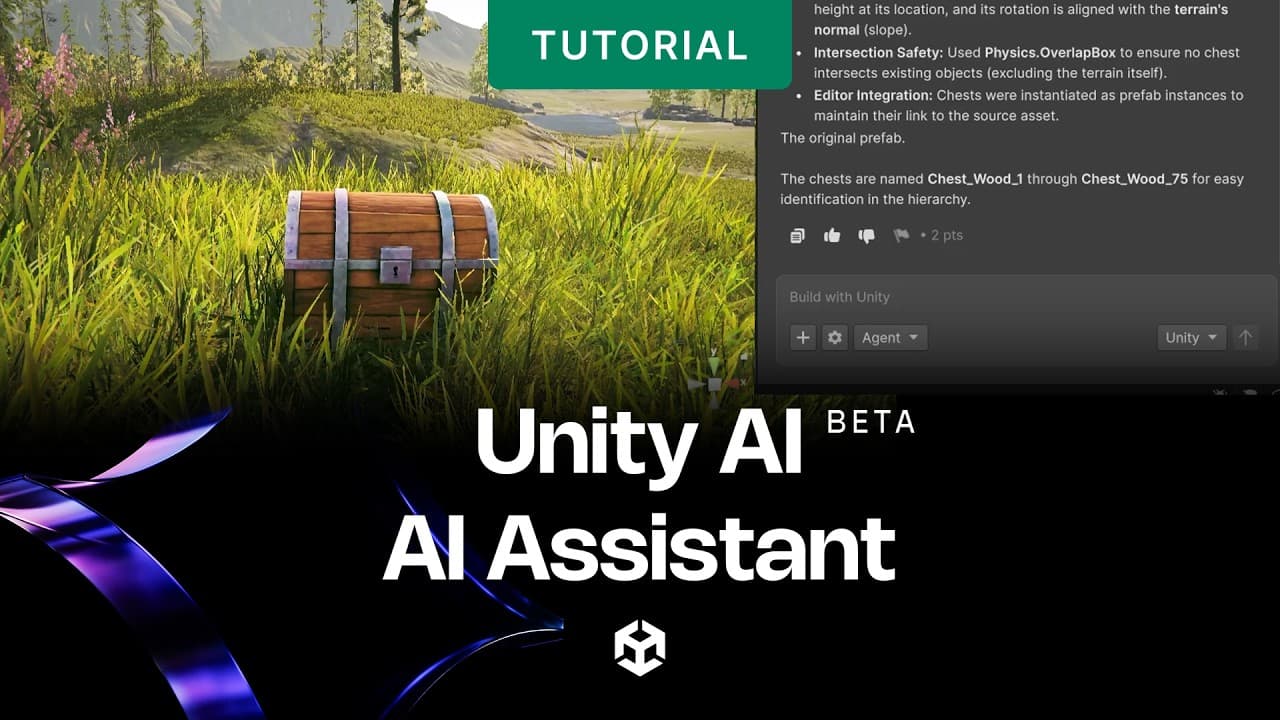
Ask mode
Ask mode is the fastest way to get answers inside the Editor. Type a question in plain English and the in-editor AI Assistant responds with an explanation, a code snippet, or a recommendation – all grounded in your project context. It draws on Unity's documentation, runtime API references, and the state of your current project.
Ask mode is read-only: it never modifies your project, never writes files, and never changes anything without you acting on the response yourself. It is the right mode when you want information, not action.
Ask mode is good at:
- Explaining Unity APIs and how specific components work
- Diagnosing console errors and suggesting fixes
- Recommending approaches for a given gameplay or system problem
- Answering questions about your scene – “what GameObjects use this material?”
- Looking up package documentation without leaving the Editor

Asking a question in Ask Mode
Plan mode
Plan mode is designed for tasks that require multiple steps to complete. When you describe what you want to build or change, the Assistant produces a structured plan – a step-by-step breakdown of what it intends to do – before taking any action.
You review the plan, adjust it if needed, and then approve it. Only after approval does anything happen in your project. This makes Plan mode the right choice when you want visibility and control over the approach so you can make an informed decision before allowing Unity AI to make changes.
Plan mode works well for:
- Refactoring an existing system across multiple scripts
- Setting up a new feature from scratch – input handling, state machines, events
- Reorganising a scene hierarchy based on a design requirement
- Migrating code from one Unity version or pattern to another
Ask mode
Ask mode is the starting point for most interactions. Use it to ask questions about Unity, get explanations for console errors, understand how a specific component works, or look up best practices. The Assistant draws on Unity's documentation and the context of your active project to give specific, relevant answers.
Example prompts in Ask mode:
- “Why is my Rigidbody passing through the floor?”
- “What is the difference between FixedUpdate and Update?”
- “How do I set up a NavMesh for my current scene?”

The in-editor AI Assistant panel with a sample query.
Plan mode
Plan mode helps you simplify complex tasks by breaking them into smaller steps. Instead of a single answer, the in-editor AI Assistant produces a structured plan for a multi-step task – listing what it intends to do before taking any action. This gives you the chance to review, adjust, and approve before anything changes in your project.
Plan mode is useful for tasks like refactoring a system, setting up a new feature from scratch, or reorganizing scene hierarchy – situations where you want visibility into the approach, so you can make an informed decision before execution.

Plan mode provides a structured plan before execution.
Agent mode
Agent mode gives the in-editor AI Assistant the ability to act. Once you give it an instruction and approve its permissions, it executes the task end to end: writing scripts, modifying scene components, creating prefabs, and verifying that the changes behave as instructed.
Every change is reversible. You can undo steps, and all AI-generated assets are tagged with embedded metadata so they are identifiable in your project and for app store declarations.
Permission levels
You control how much autonomy Agent mode has. Permission levels let you restrict what the Agent can touch:
- Read-only: the Agent can inspect your project but cannot write or modify anything
- Write scripts only: the Agent can create and edit C# scripts but not modify scenes or assets
- Full autonomy: the Agent can write scripts, modify scenes, create assets, and run Editor actions
A permission prompt appears before the Agent applies changes in a session. Tool activity entries appear in the conversation so you can see exactly what the Agent is doing, and you can expand each entry to review parameters and results.

Agent Mode executing a task in the Unity Editor
What makes Unity’s AI tools different: Project context
The quality of what the in-editor AI Assistant produces comes down to context. Most AI coding tools see only the file you have open. The in-editor assistant sees your entire project:
- Scene graph and hierarchy
- All GameObjects and their components
- Installed packages and their versions
- Target platform and build settings
- Console output – warnings, errors, and logs
That context is live. When you ask a question or request an action, the in-editor AI Assistant reads the current state of your project, not a snapshot from when you opened it. This means it can reason about what is actually in your scene, catch issues that would only appear at runtime, and generate code that fits your existing architecture.

The in-editor assistant reading scene context in real-time
Attaching additional context
You can also manually attach relevant project data to any conversation using the attachment button (+) in the Assistant window to provide specific context. This lets you point the Assistant at a specific script, a prefab, or a set of assets – narrowing its focus for tasks where you know exactly what it should be working with.
How to open the in-editor AI assistant
Once you have installed the Assistant package:
1. In the main menu, go to AI > Assistant.
2. Dock the window in your layout to keep it accessible.
3. Select a mode (Ask, Plan, or Agent) and enter your prompt.
If you have not installed the package yet, go to Window > Package Manager, select Add package by name, and enter com.unity.ai.assistant.

Open the in-editor AI assistant from the Unity Editor's menu bar
More on Unity’s AI tools in beta
If you’re interested in reading more about what’s available in the beta, we invite you to read other articles in this ongoing series:
- Introducing Unity’s AI tools in beta
- How to get started with MCP
- Using the UI Generator
- Create props with the 3D Object Generator
- Create PBR materials from a text prompt using the Material Generator
- Create skyboxes and environment reflections with the Cubemap Generator
- Using Sprite Generator to create 2D sprites, icons, and spritesheets
Try Unity’s AI tools in beta today
Unity AI’s tools in beta are available now for all Unity 6 developers. Sign up for a free trial, explore the in-editor AI Assistant, connect your preferred tools via the AI Gateway, and start experimenting with what your development workflow looks like with a project-aware AI agent built in.
Sign up and learn more about plans, pricing, and data privacy at unity.com/features/ai
Full documentation is available in the AI docs linked from the Editor or at docs.unity3d.com.
Unity’s AI tools are currently in beta. As such, features, behavior, and availability described in this post are under active development and may change, be limited, or be discontinued without notice.