• Games
  • Industry
  • Resources
  • Community
  • Learning
  • Support
Development
Unity Engine
Build 2D and 3D games for any platform
DownloadPlans and pricing
Monetization
In-App Purchase (IAP)
Discover and manage IAP across stores
Mediation
Maximize revenue and optimize monetization
Ad Quality
Protect your app’s user experience
Tapjoy
Build long-term user loyalty
All monetization products
User acquisition
User acquisition
Get discovered and acquire mobile users
Unity Vector AI
Connect players with the right games
Aura on-device advertising
Reach users on-device at peak engagement
All growth products
Use cases
3D collaboration
Build and review 3D projects in real time
Immersive training
Train in immersive environments
Customer experiences
Create interactive 3D experiences
All industry solutions
Industries
Manufacturing
Achieve operational excellence
Retail
Transform in-store experiences into online ones
Automotive
Elevate innovation and in-car experiences
All industries
Technical library
Documentation
Official user manuals and API references
Developer tools
Release versions and issue tracker
Roadmap
Review upcoming features
Glossary
Library of technical terms
Insights
Case studies
Real-world success stories
Best practice guides
Expert tips and tricks
All resources
What's new
Blog
Updates, information, and technical tips
News
News, stories, and press center
Community Hub
Discussions
Discuss, problem-solve, and connect
Events
Global and local events
Community stories
Made with Unity
Showcasing Unity creators
Livestreams
Join devs, creators, and insiders
Unity Awards
Celebrating Unity creators worldwide
For every level
Unity Learn
Master Unity skills for free
Professional training
Level up your team with Unity trainers
New to Unity
Getting started
Kickstart your learning
Unity Essential Pathways
New to Unity? Start your journey
How-to Guides
Actionable tips and best practices
Education
For students
Kickstart your career
For educators
Supercharge your teaching
Education Grant License
Bring Unity’s power to your institution
Certifications
Prove your Unity mastery
Support options
Get help
Helping you succeed with Unity
Success plans
Reach your goals faster with expert support
FAQ
Answers to common questions
Contact us
Connect with our team
Plans and pricing
Language
  • English
  • Deutsch
  • 日本語
  • Français
  • Português
  • 中文
  • Español
  • Русский
  • 한국어
Social
Currency
Purchase
  • Products
  • Unity Ads
  • Subscription
  • Unity Asset Store
  • Resellers
Education
  • Students
  • Educators
  • Institutions
  • Certification
  • Learn
  • Skills Development Program
Download
  • Unity Hub
  • Download Archive
  • Beta Program
Unity Labs
  • Labs
  • Publications
Resources
  • Learn platform
  • Community
  • Documentation
  • Unity QA
  • FAQ
  • Services Status
  • Case Studies
  • Made with Unity
Unity
  • Our Company
  • Newsletter
  • Blog
  • Events
  • Careers
  • Help
  • Press
  • Partners
  • Investors
  • Affiliates
  • Security
  • Social Impact
  • Inclusion & Diversity
  • Contact us
Copyright © 2025 Unity Technologies
  • Legal
  • Privacy Policy
  • Cookies
  • Do Not Sell or Share My Personal Information

"Unity", Unity logos, and other Unity trademarks are trademarks or registered trademarks of Unity Technologies or its affiliates in the U.S. and elsewhere (more info here). Other names or brands are trademarks of their respective owners.

Hero background image
BETA

Unity AI

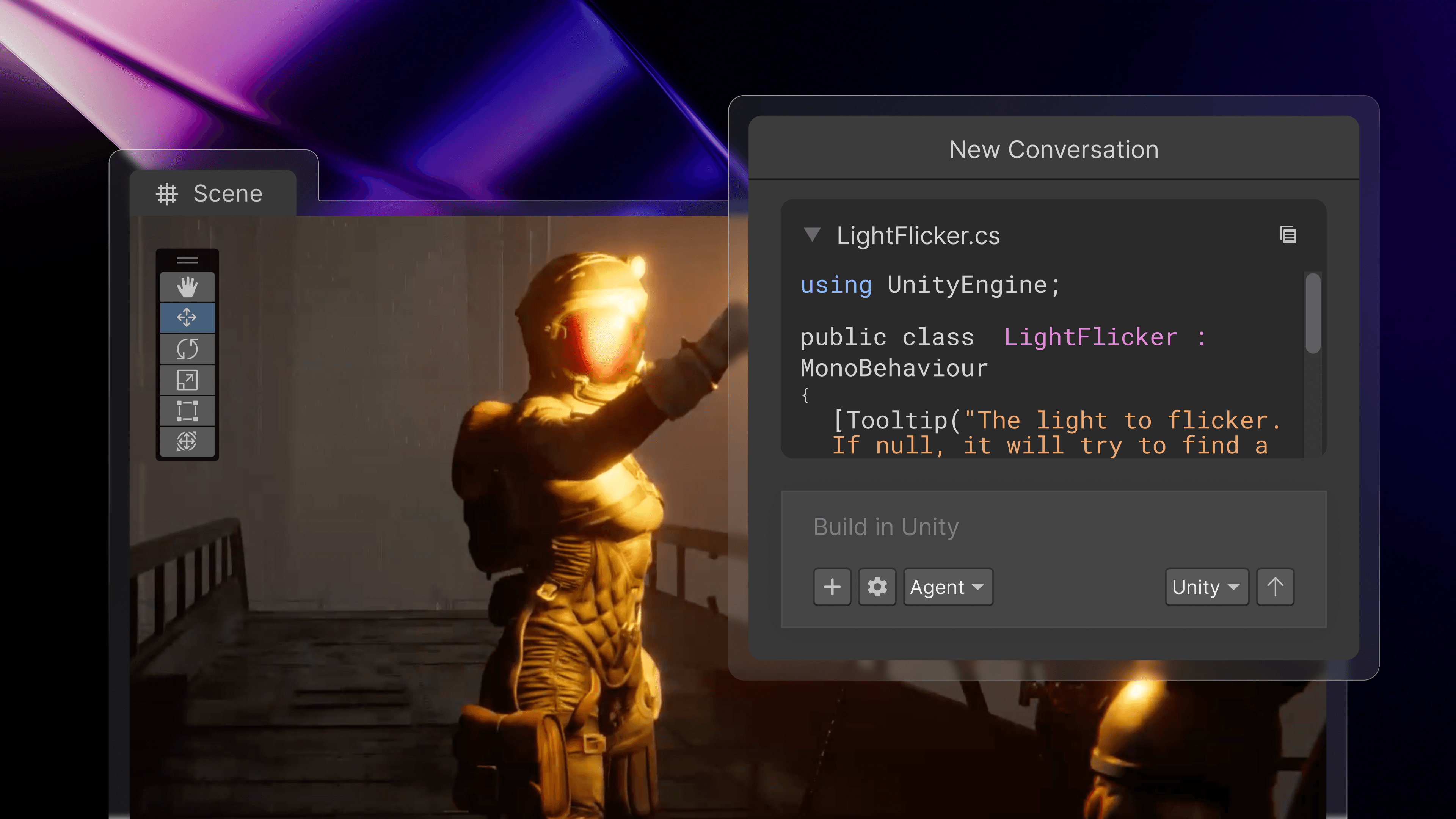
Make creating with Unity faster and easier. Unity AI is a suite of AI tools that provides contextual assistance, automates tedious tasks, generates assets, and lowers the barrier to entry - all from within the Unity Editor.
Download Unity 6.2
Send us your ideas
Download Unity 6.2
Send us your ideas
Unity AI is now in beta and incorporates the functionality of Unity Muse and Sentis, which will be sunset.
Learn more
  • Key benefits
  • Get started
  • FAQ

Contextual awareness

Get tailored help in your project by referencing assets in the Editor.

Data controls

Full transparency and controls, with no default data collection or training.

Curated models

Use third-party AI models inside Unity. No manual setup or switching apps.

See Unity AI in action

AI prompt to ask about GameObjects

Easily audit your assets

Get quick, focused help with your GameObjects, scripts, Prefabs, and more–just drop them into Assistant without having to spell out every detail.

AI prompt to set the intensity of lights

Locate, modify, and organize in bulk

Automate repetitive tasks in-editor, like locating lights over a set intensity or objects missing Rigidbodies, and update names, layers, or components all at once.

AI prompt to debug console error

Debug console errors

Ask Assistant to explain scripts or error messages directly in the Editor to better understand and resolve issues.

AI prompt to help learn Unity

Learn Unity development

Get thorough explanations and step-by-step setup guidance for complex Unity features or concepts (like Colliders or VFX Graphs) directly in the Editor.

AI prompt to set up scenes

Quickly set up scenes

Use plain language commands to generate objects, place assets, and automate scene setup.

AI prompt to generate placeholder assets

Generate placeholder assets

Create sprites, textures, animations, and sounds directly in Unity—properly formatted, no extra setup or context switching required. Plus, trace their use for replacement when going to production.

AI prompt to generate code

Generate code

Generate new scripts or optimize existing ones directly in your project, automating C# boilerplate and repetitive tasks to free up your focus on problem solving.

How to get started with Unity AI

placeholder

Step 1 - Install Unity 6.2

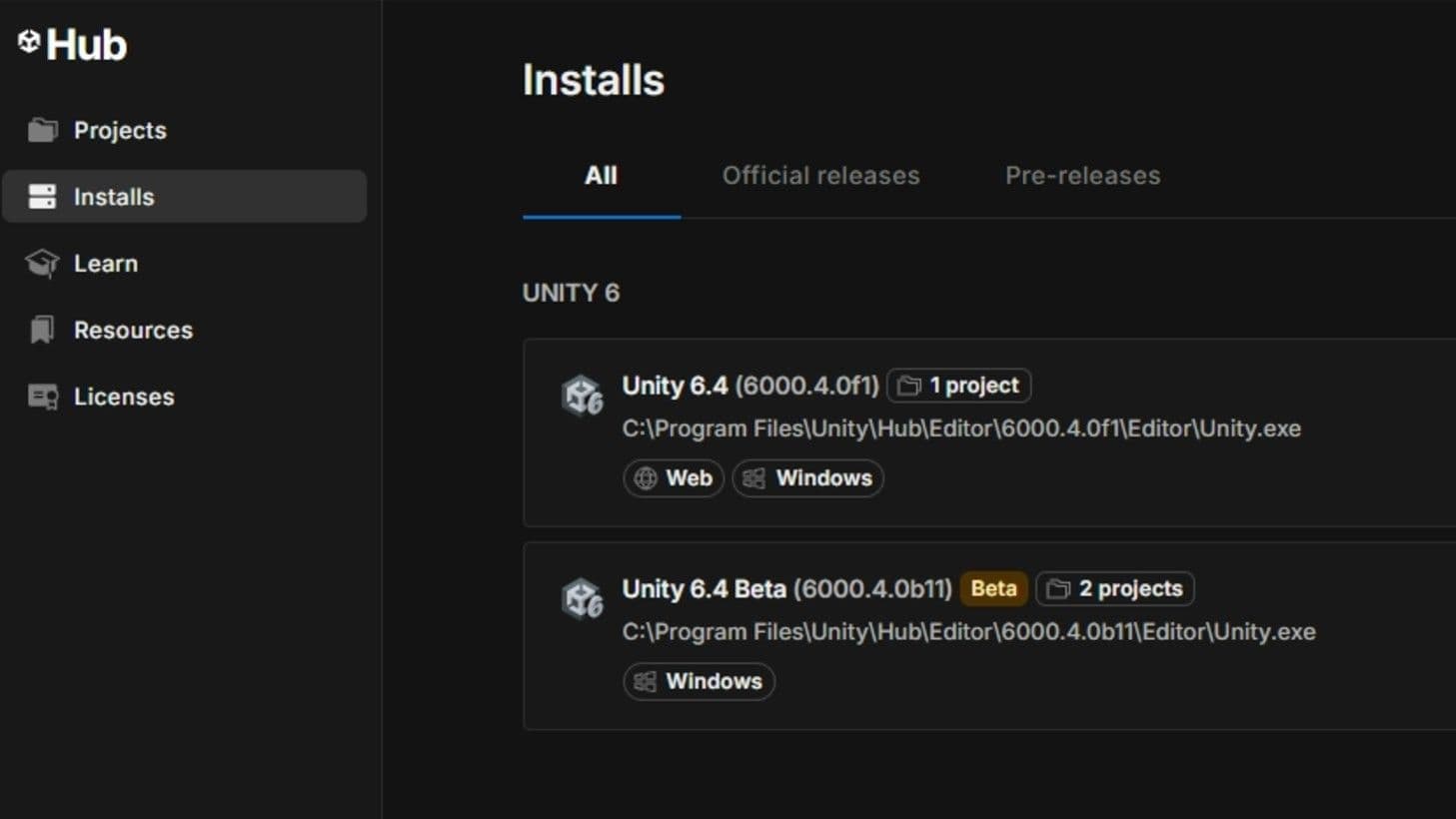
Install Unity 6.2 from the release archive or directly in the Hub.

Download Unity
placeholder

Step 2 - Install the AI Packages

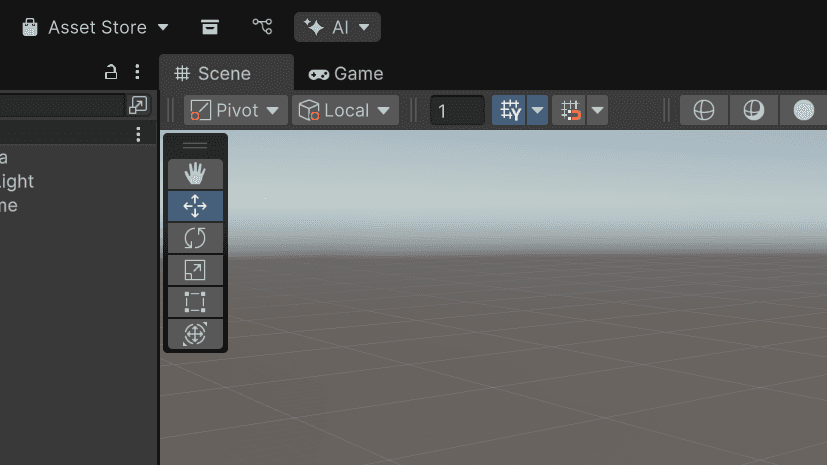
Click the AI button in the Editor and install the AI packages.

Read docs
placeholder

Step 3 - Link to Unity Cloud

Ensure that your project is linked to a cloud project.

Learn more

Frequently asked questions

What is Unity AI?

+

Unity AI is a suite of AI tools and capabilities that are integrated directly into the Unity Editor. Muse and Sentis will be sunset, and their functionality will be incorporated into Unity AI which provides improved features, better integration with the Unity Editor, more flexible pricing, and more choice in AI models. A few of the new features include pre-compiled code generation, running agentic actions, and new generative asset types.

Can I use Unity AI on my existing project while it’s in beta?

+

Unity AI packages are in a “pre-release” state in our continued open beta. As a reminder, per our terms of service related to evaluation versions, you may only try Unity AI in test projects, and not in production projects until it becomes generally available.

What features are in Unity AI?

+

Unity AI has three main components:

  1. Assistant: Assistant replaces Muse Chat as a contextual helper in Unity. It can answer questions about your project and guide you through implementing new features more productively. Project assets can be dragged to your prompt to provide heightened context to the Assistant. Assistant can also generate pre-compiled code and execute agentic actions like resolving console errors, batch renaming multiple files, creating NPC variants, placing a large number of objects in a scene. Assistant will consume Unity Points, which you can read about below.
  2. Generators: Generators replace all Muse asset generation features: Animate, Sprite, and Texture. Generators are better integrated into Unity Editor workflows and inspectors and include both Unity’s own first-party AI models and third-party models (models developed and hosted independently from Unity) via APIs. Notably, we added new higher quality generative models for Sprites, introduced a video prompt to the Animation generator, and added generative Sound as a new generative asset type. Post-processing effects are available to refine generated asset styles, such as sound envelope editing, sprite background removal, pixelation, upscaling, recolor, texture map settings, animation looping, and more. The Generators will consume Unity Points (see below FAQ: How much will Unity AI cost?).
  3. Inference Engine: Inference Engine replaces Sentis. This is a simple name change as we wanted something that fits better with existing Unity Editor naming conventions. Inference Engine continues to focus on local AI model inference performance gains for unique runtime experiences. We have built an API upgrade path for users upgrading from Sentis to Inference Engine that is simple to implement. Hugging Face models are still available here. Local inference remains free and will not consume Unity Points.

How do I get access to Unity AI?

+

When you download the Unity 6.2 beta, you will see a new “AI” button persistent at the top of the Editor window for easy installation and access to Unity AI. During the beta period, all users who install Unity 6.2 and choose to install the Unity AI features (packages) will receive free Unity Points to try the features. Unity AI will enter GA (general availability) along with Unity 6.2 later this year. The free points will expire at the end of the beta, and paid Unity Points will be required going forward.

What are the system requirements for Unity AI?

+
  1. You must install Unity 6.2.
  2. You must agree and accept the terms on the AI button in the Unity Editor, and install the AI packages.
  3. Your project must be linked to a Unity Cloud project per the documentation.

How much will Unity AI cost?

+

During the Unity 6.2 beta, Unity AI is free for all users. When Unity 6.2 enters GA (general availability), we will introduce Unity Points which can be used for various AI actions within the Assistant and Generators. Unity Points will be included in Unity Pro, Unity Enterprise, and Unity Industry plans. All users will also be able to purchase Unity Points bundles separately. Pricing will be available when Unity 6.2 enters GA.

What is happening to Muse?

+

Muse will be sunset shortly after Unity 6.2 enters GA (general availability). Muse will remain available for users through the Unity 6.2 beta period.

As a current Muse user what do these changes mean for me?

+

You can continue to use Muse until Unity 6.2 enters GA (general availability) later this year. After that, your monthly subscription will not renew and your credit card will not be charged. You will lose access to create new Muse generations and chats once your monthly subscription automatically ends. You can cancel your Muse subscription any time before then.

You will have access to Muse Chat history and local Muse asset generated assets (ie. Sprites, Textures, Animations) as long as you keep the Muse packages installed, but will lose them if you uninstall the Muse packages. All Muse generated assets that are imported in the project will remain in your project. There is no migration of Muse points, assets, or user data to Unity AI.

Do terms for Unity Muse apply to Unity AI?

+

No. Unity Muse and Unity AI are separate offerings with distinct approaches and terms. Unity Muse uses only first-party AI models developed and trained by Unity, and its terms and usage policies are specific to that product. Unity AI, on the other hand, provides access to third-party generative models via API, which are developed and maintained by external partners. Unity AI terms will be published when the product becomes generally available, and Unity’s Terms of Service apply while the product remains in beta.

Unity continues to provide in-product safeguards, asset traceability tools, and opt-out controls to help developers manage content responsibly across both Muse and Unity AI.

What is happening to Sentis?

+

We are renaming Sentis to Inference Engine. This is a simple name change as we wanted something that fits better with Unity Editor naming conventions. Inference Engine continues to focus on local AI model inference performance gains for unique runtime experiences. You can find more information in the documentation.

What models does Unity AI use?

+

You can find the full list of AI models on our Models and Partners page.

How are AI-generated assets managed in my project?

+

All generated assets and scripts will contain metadata (i.e. EXIF data) that states “This asset was generated with AI”, making it easy to manage and search in your project. It is your responsibility to determine the appropriate AI-based declarations to make with app stores, distribution platforms, and end-users when you ship a commercial project that has used generative AI.

Additionally, as with any imported asset, you should always verify that you have the rights to use generated content in your final build.

How does Unity AI use my data?

+

By default, data related to your use of Unity AI including prompts, responses, and interactions are only used to provide you with the service, and are not used to train AI models. For example, if you upload a reference image to generate a truck sprite, we do not use your source image to train or improve the generative image model.

Via your Unity Dashboard, you can choose to share your Unity AI data with us for model training purposes. We do not use your runtime application (the binary itself) or media assets such as your images, meshes, or audio to improve Unity AI.

Learn more here about Unity’s Developer Data Framework.

What if I have more questions?

+

Check out our dedicated Unity AI Discussions page or contact Unity Support.