
Unity's AI tools meet you where you work
In the Editor, in your terminal, and in your 3rd-party agent.
AI Tools in Unity



Unity command-line interface (CLI)
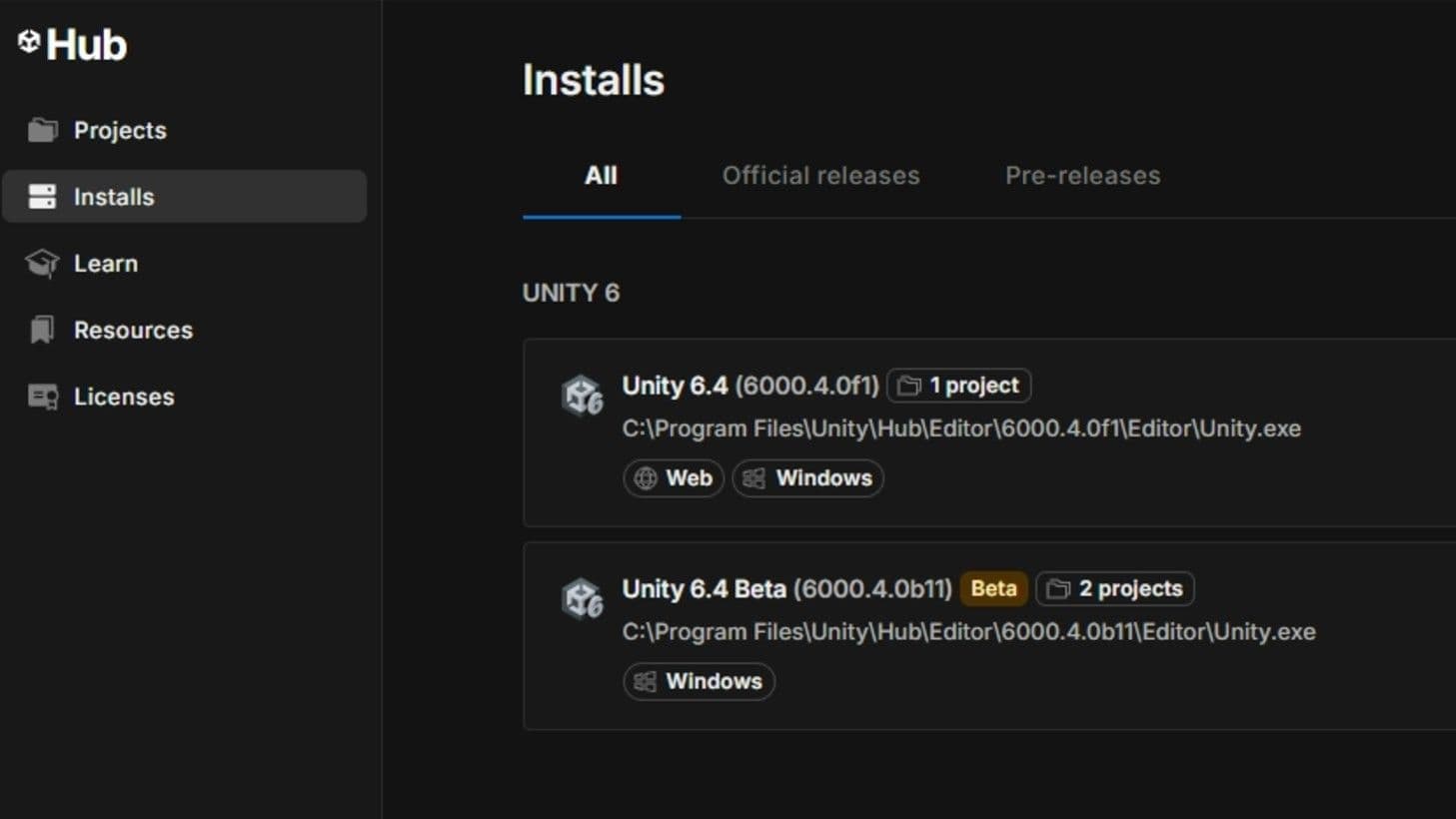
Drive Unity from your terminal. Install the Editor, create and open projects, and use built-in MCP Mode to connect the agent you already use.
Official Unity plugin for your coding agent
Unity-aware context, commands, and MCP setup, installed straight into the agent you already use.
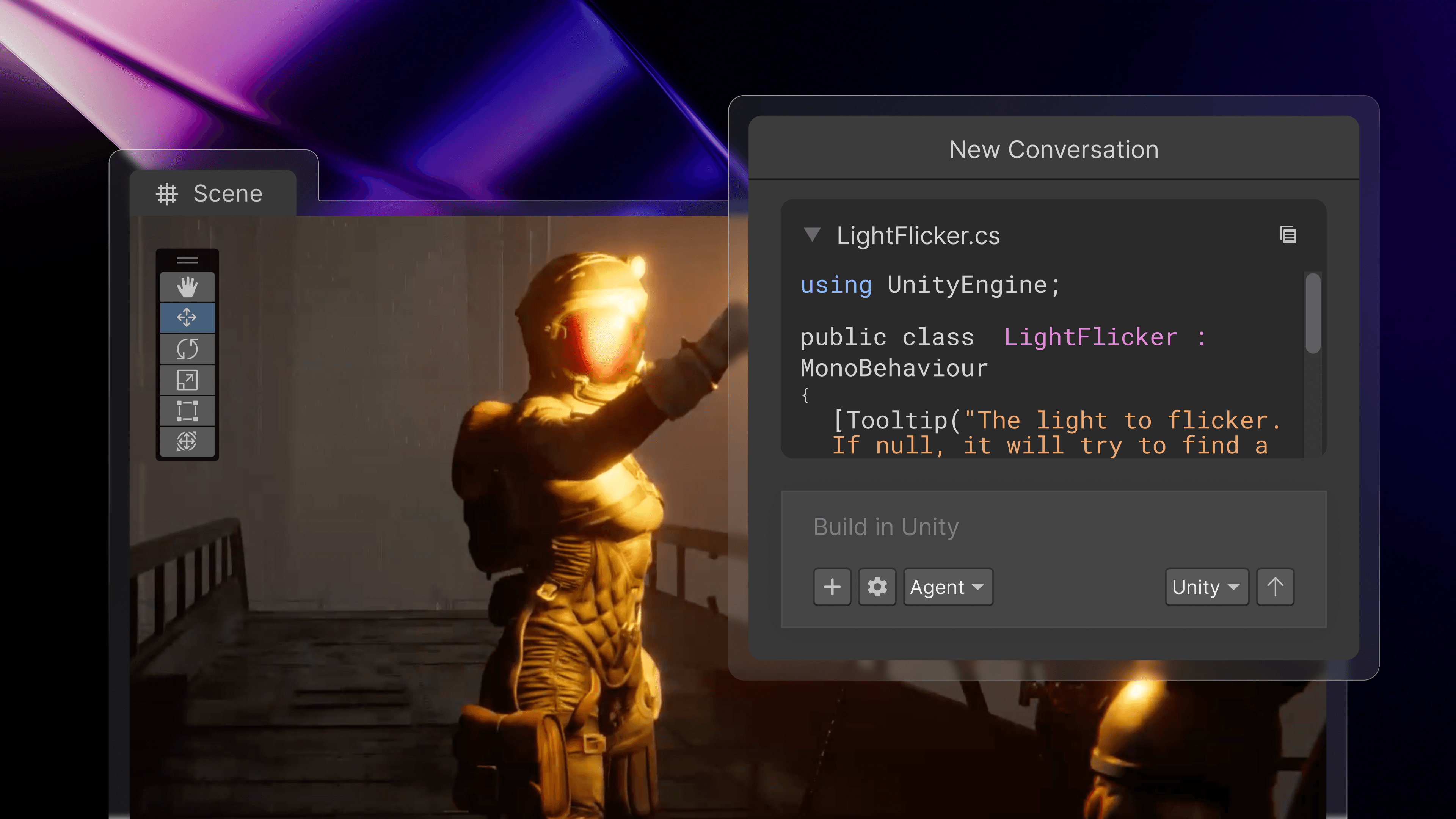
Agentic assistance inside the Editor
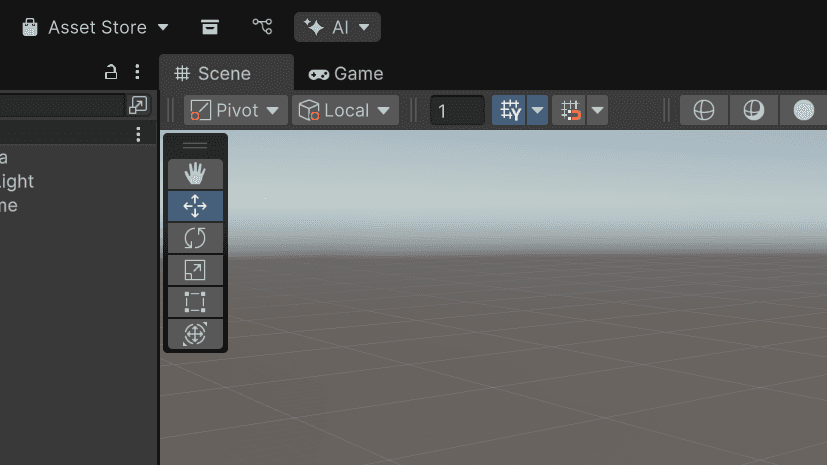
Editor-integrated and project-aware. Unity's in-editor assistant understands your scene, drives Editor actions, and verifies changes behave as intended — with multiple models to choose from for every task.
How to get started with Unity’s AI tools


Frequently asked questions
Unity's AI tools meet you where you prefer to work. Our tools include our own in-project agentic assistant, which leverages deep context from your projects and is built specifically for Unity workflows. You can also choose the most secure, stable, and performant way to connect and control your preferred AI tools directly in the editor with our AI gateway, or from your IDE with our MCP server through CLI. We also have an official plugin available which adds a set of Unity skills directly to your AI agent.
We're retiring the "Unity AI" brand name. The tools themselves aren't going anywhere, we're simply describing each one by what it does: the in-editor AI assistant, the AI gateway, the MCP server, the official plugin, and the CLI. Collectively, we'll refer to them as Unity's AI tools.
If you want to control Unity from the agent you already work in, install our official plugin for free. For controlling Unity through the command line, install the free Unity CLI. To use Unity's own assistant directly in the Editor, you can install Unity's in-editor assistant package, which requires credits to use. You can learn more about purchasing Unity's AI credits here.
It requires Unity 6.0 and up, and may require a package installation.
Pro, Enterprise, and Industry customers receive access to Unity’s agentic assistant as a part of their paid subscription. Personal Edition users may sign up for a free trial to Unity's agentic assistant, which converts to a $10/month subscription. See more on the pricing page. CLI, MCP server and Unity's official plugin are all free to use with no concurrency limits.
You can view your allotted credits in the Unity Dashboard. In the Unity AI tools section, just navigate to the Manage Credits tab.
To buy additional credits, please click here.
Unity’s in-editor AI assistant is trained on Unity knowledge from 20+ years of best practices. It’s designed for the workflows game developers actually use to build and ship games. Unity’s assistant can understand your scene, inspect GameObjects and components, help drive Editor actions, and verify that changes behave as intended.
The in-editor AI assistant gives you the power to choose the right model for every task. Compare credit consumption between models here.
No. MCP server is free, with no concurrency limits and you do not need to purchase Unity's AI credits to use it. Install MCP server through CLI - more information here.
Yes. Personal edition users can sign up for a free trial. Find more information here.
No. Using a third-party agent via the AI gateway will not consume Unity credits.
You can find the full list of AI models on our Guiding Principles page.
You can bring your own if you’d like. The AI gateway allows you to connect a verified third-party agent that you already have a subscription for, bypassing Unity's agent and credit system. Or, you can control Unity using the CLI, MCP server, or directly in your preferred agent using Unity's official plugin.
Yes, Unity's AI tools can be used in any project using Unity Editor 6.0 and newer.
By default, user data is solely used to provide the service and is not used to train AI models. Users can opt-in to share data via the Dashboard.
Learn more here about Unity’s Developer Data Framework.
Assets generated by Unity's in-editor assistant contain embedded metadata flagging them as AI-generated. Developers are fully responsible for managing app store declarations and verifying usage rights.
You do not need to disable them because they are not included by default. They require package installation.
Yes, users have granular control. Generators in Unity's in-editor assistant can be completely turned off in the dashboard settings while keeping the assistant active.
No. Unity Muse is a deprecated product offering which featured Unity first-party models, while Unity's AI tools utilize third party models.
Unity’s AI tools are governed by the Unity Terms of Service generally applicable to Evaluation Versions of Unity offerings, specific click-through terms, and our Guiding Principles during beta phase.
Sentis remains active and serves as the engine for running neural network models natively within the Unity Runtime.
Yes. All third-party AI tools and MCPs are subject to Unity Core Standards, including tools distributed outside the Asset Store or Package Manager.
It is Unity's own first-party plugin. Installing it gives agents two things: Unity's engineering skills, and the Unity CLI for live Editor control. The point is that the agent then works inside a Unity project the way Unity intends, rather than guessing at conventions.
The plugin can be installed using a command from the terminal, or from your agent's plugin marketplace. Read the documentation here.
You can see our expanding list of agents and corresponding documentation here.
Unity’s plugin supports Unity version 6.0 and later.
Engineering skills authored and maintained by Unity, plus the Unity CLI and the first-party MCP server. The skills cover getting started and tooling, UI (UI Toolkit, uGUI, IMGUI, TextMeshPro), 2D and sprites, graphics and rendering (URP, Shader Graph), audio (including Vivox), scene and gameplay (AI Navigation, 3D physics), monetization and live ops (IAP, LevelPlay, live-service backends), multiplayer, and platform and localization.
The Unity CLI lets you point the coding agent you already prefer at the Unity Engine. The plugin bundles the CLI together with Unity's skills and the MCP server so you get all three in a single install inside your agent, without wiring them up yourself.
Performance claims are based on internal Unity benchmarks comparing Unity’s AI tools against general-purpose frontier AI models across a range of Unity-specific development tasks. Individual results may vary based on project complexity, specific task types, and user behavior.