
Unity 2020.1 release
New features and updates in graphics
This release brings further stabilization and new features for technical artists and graphics programmers working in Unity. This includes Camera Stacking in Universal Render Pipeline as well as lighting updates, such as lightmapping optimizations.
What’s new in 2020.1
Discover some of the major updates for graphics in Unity 2020.1. For full details, check out the release notes.
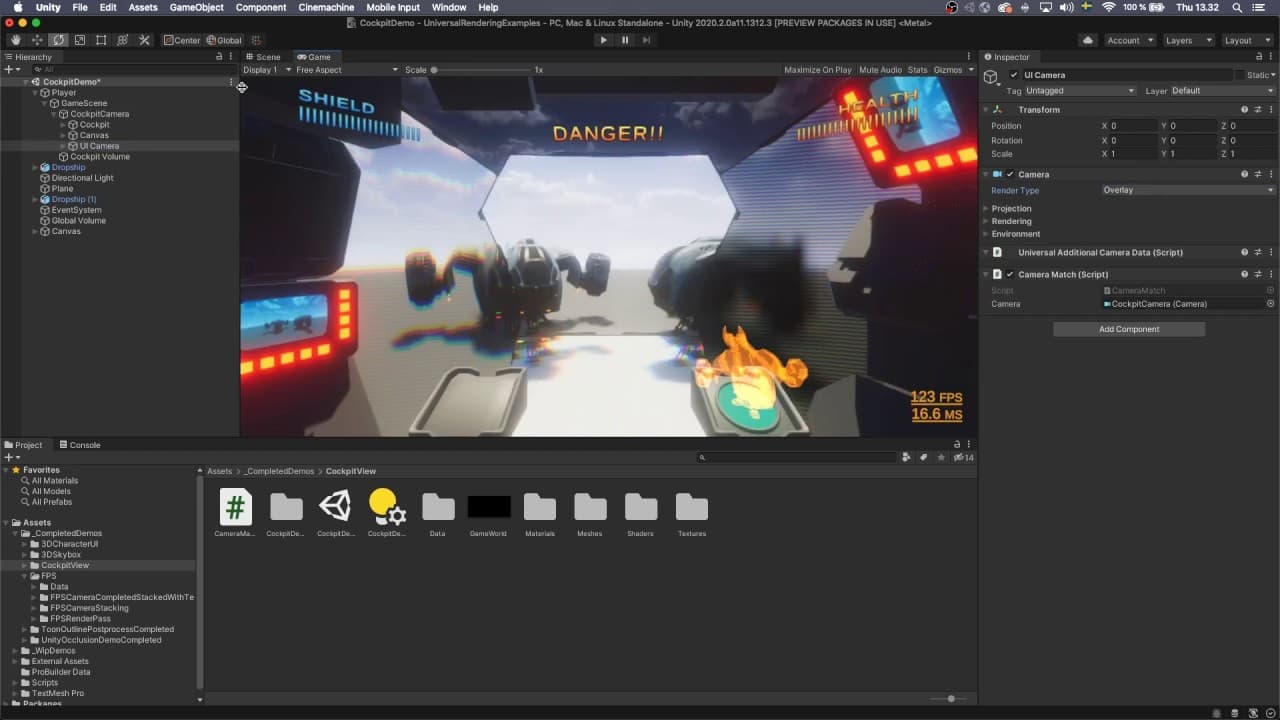
Camera Stacking in Universal Render Pipeline
When building a game, there are many instances where you want to include something that is rendered out of the main camera’s context. For example, in a pause menu you may want to display a version of your character, or in a mech game you may need a special rendering setup for the cockpit.
You can now use Camera Stacking to layer the output of multiple Cameras and create a single combined output. It allows you to create effects such as a 3D model in a 2D user interface (UI), or the cockpit of a vehicle. See documentation for current limitations.
Lighting updates
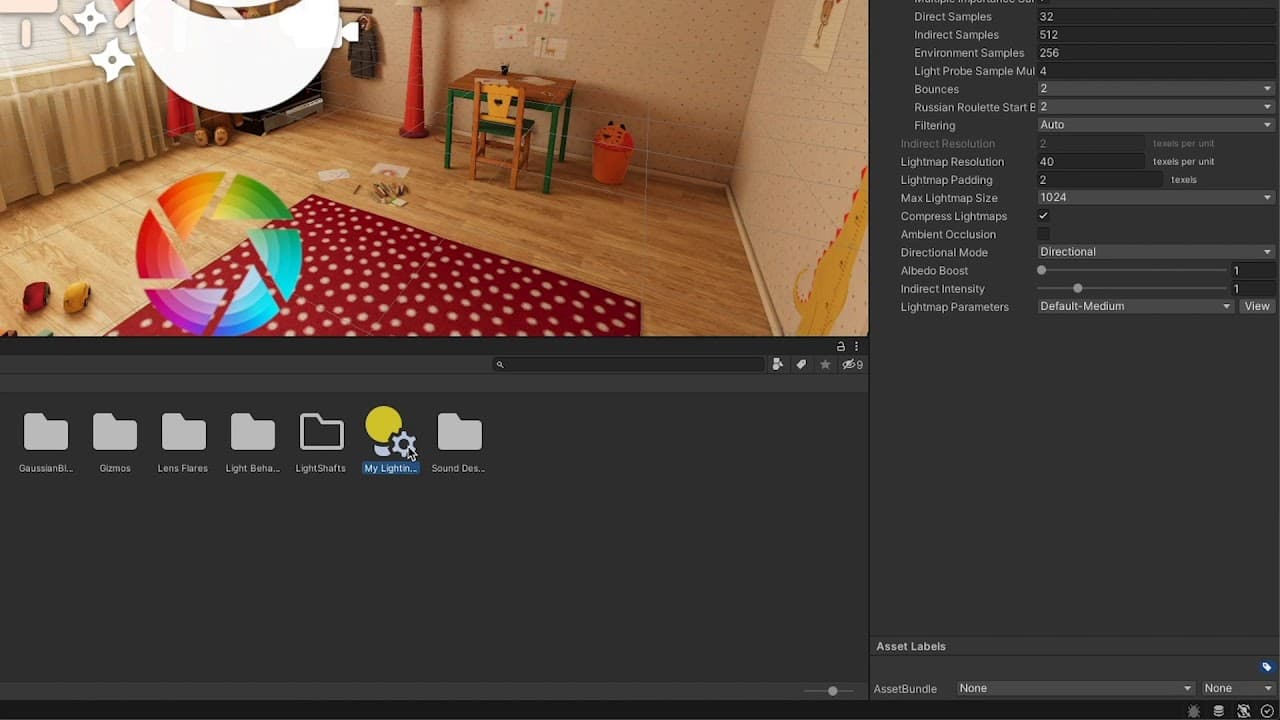
Lighting Setting Assets let users change settings that are used by multiple Scenes simultaneously. This means that modifications to multiple properties can quickly propagate through your projects, which is ideal for lighting artists who may need to make global changes across several Scenes. It’s now much quicker to swap between lighting settings, for example, when moving between preview and production-quality bakes.
An important note: Lighting settings are no longer a part of the Unity Scene file; instead, they are now located in an independent file within the Project that stores all the settings related to precomputed Global Illumination.
Note: The video above is from Enter the Room project created by Nedd for ICRC.

Overlap-free packing
Setting up models for lightmapping is now much simpler.
To lightmap objects, they must first be “unwrapped” to flatten the geometry into 2D texture coordinates (UVs). That means that all faces must be mapped to a unique part of the lightmap. Areas that overlap can cause bleeding and other unwanted visual artifacts in the rendered result.
To prevent bleeding between adjacent UV charts, geometry areas need sufficient padding into which lighting values can be dilated. This helps to ensure that the effect of texture filtering does not average-in values from neighboring charts, which may not correspond to expected lighting values at the UV border.
Unity’s automatic packing creates a minimum pack margin between lightmap UVs to allow for this dilation. This happens at import time. However, when using low texel densities in the Scene, or perhaps when scaling objects, the lightmap output may still have insufficient padding.
To simplify the process of finding the required size for the pack margin at import, Unity now offers the “Calculate” Margin Method in the model importer. Here you can specify the minimum lightmap resolution at which the model will be used, as well as the minimum scale. From this input, Unity’s unwrapper calculates the required pack margin so no lightmaps overlap.

GPU and CPU Lightmapper: Improved sampling
Correlation in path tracing is a phenomenon where random samples throughout a lightmapped Scene can appear to be “clumped” or otherwise noisy. In 2020.1, we have implemented a better decorrelation method for CPU and GPU Lightmappers.
These decorrelation improvements are active by default and do not need any user input.The result is lightmaps that converge upon the noiseless result in less time and display fewer artifacts.
We have also increased the Lightmapper sample count limits from 100,000 to one billion samples. This can be useful for projects like architectural visualizations, where difficult lighting conditions can lead to noisy lightmap output.
Further improvements are coming to this feature for 2020.2, which you can now preview in alpha builds.

Lightmapping optimizations
When lightmapping, we launch rays in the Scene that bounce on the surfaces, creating light paths used to calculate Global Illumination. The more a ray bounces, the longer the path, and the longer it takes to generate a sample. This drives up the time needed to lightmap the Scene.
To cap the amount of time spent calculating each ray, the lightmapper needs to find some criteria for ending the path of each light ray. You can do this with a hard limit on the number of bounces that each ray is allowed. To further optimize the process, you can use a technique known as “Russian Roulette,” which randomly chooses paths to end early.
This method takes into account how meaningful a path is to Global Illumination in the Scene. Each time a ray bounces on a dark surface increases the chances of that path ending early. Culling rays in this way reduces the overall bake time with generally little effect on lighting quality.
The image above is from Enter the Room project created by Nedd for ICRC.

Lightmapped cookie support
Cookies are a type of map that can be applied to Lights to model lighting with a nonuniform distribution of luminance. This can improve the realism of lighting and be used to create several other dramatic visual effects.
While cookies were previously limited to real-time Lights only, in 2020.1, Unity now supports cookies in the CPU and GPU Lightmappers. This means that baked and mixed-mode Lights will also take into account the influence of the cookie in attenuating both direct and indirect lighting.
Lightmapped cookie support serves as the basis for us to support IES lights for our architectural customers in future releases.

Contributors/Receivers Scene View Mode
With the Contributors and Receivers Scene View, you can now see which objects are influencing Global Illumination (GI) within the Scene. This also makes it easier to quickly see whether GI is received from lightmaps or Light Probes.
Using this Scene View mode, Mesh Renderers are drawn with different colors depending on whether they contribute to GI and if/how they receive GI. This Scene View Mode works in all Scriptable Render Pipelines in addition to Unity’s built-in renderer.
This mode can be especially useful with Light Probe, as it provides a good overview of probe usage. Colors can be customized in the Preference panel to aid with accessibility.
Ray tracing for animated Meshes (Preview)
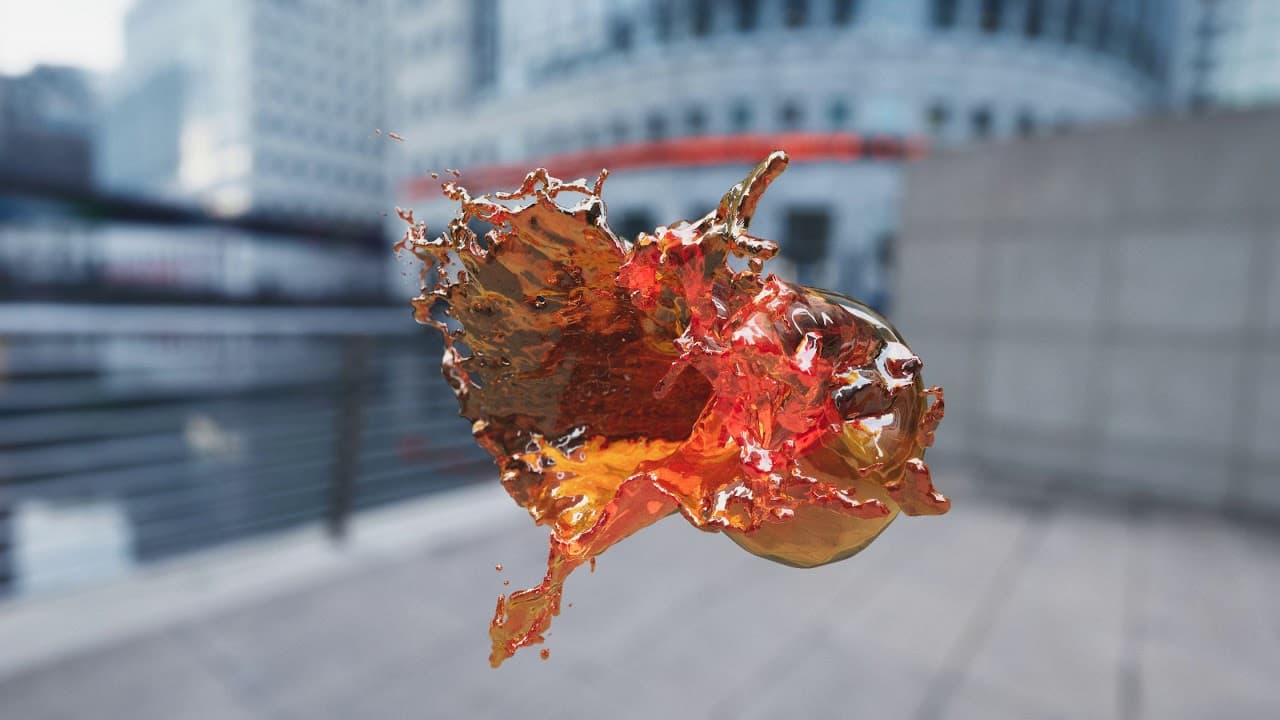
Ray Tracing (Preview) now supports animation via the Skinned Mesh Renderer component. Alembic Vertex Cache and Meshes with dynamic contents (see example below) are now supported via the Dynamic Geometry Ray Tracing Mode option in the Renderers menu. Join us in the High Definition Render Pipeline (HDRP) Ray Tracing forum if you’re interested in trying out these features. And check out our article focusing specifically on the ray tracing features in HDRP.

Streaming Virtual Texturing (Preview)
Streaming Virtual Texturing is a feature that reduces GPU memory usage and texture loading times when you have many high-resolution textures in your Scene. It works by splitting Textures into tiles, and progressively uploading these tiles to GPU memory when they are needed. It’s now supported in the High Definition Render Pipeline (9.x-Preview and later) and for use with Shader Graph.
You can preview the work-in-progress package in this sample project and let us know what you think on the forum.
