Unity AI Guiding Principles
Last Updated: August 19, 2026
Introduction
Unity offers a suite of AI tools designed to be the best AI native experience for Unity users, focused on enabling you to learn, get unblocked, be productive, and build unique experiences. A variety of artificial intelligence (AI) models are integrated into the Unity Editor to provide simple AI interfaces, and a single economy for many features. These AI features are found in the in-editor AI Assistant, the Generators, and Sentis, which you can learn more about here. This page describes the guiding principles that we design around for Unity’s AI tools.
Note that Unity’s AI tools are currently in a beta phase. We plan to keep making product improvements on a weekly to bi-weekly basis until we meet certain product quality, user sentiment, and infrastructure readiness requirements, to ensure that the offering is the best it can be before we exit the beta phase. Any feedback, requests, and comments you give during this phase will help us improve the tools.
Our three guiding principles for Unity’s AI tools are:
- Context awareness and integration
- Data controls and customization
- Curated models
Let’s dive into each of these principles further and illustrate how they appear in the Unity’s AI tools experience.
Context awareness and integration
Unity’s AI tools are integrated natively in various Unity touchpoints with a goal of creating the best AI native experience for Unity users. We crafted a Unity-specific LLM pipeline that understands things like your Unity version, Unity-specific structures like GameObjects and prefabs, your render pipeline, and more. When using Unity Editor integrations, you don’t need to shift between applications when using the AI tools, because they exist as a series of native Editor entry points and dockable Editor windows.
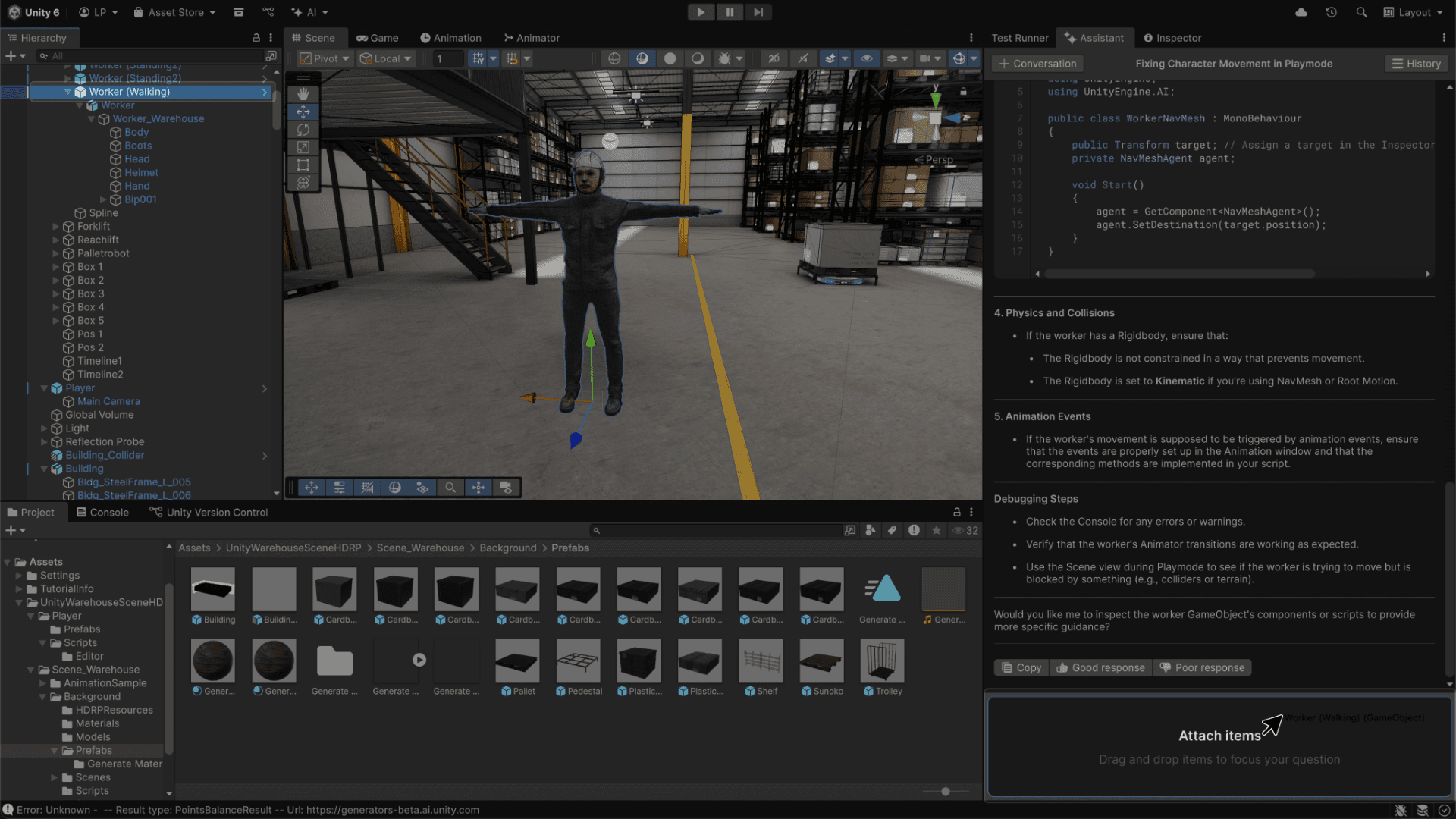
Certain Al tools are also uniquely integrated into the Unity Editor front end to allow integrations such as drag and drop context, console error resolution, as well as planned future capabilities like using the visual context of your scene view. We don’t currently index the Unity project on the cloud, but that is something we are considering for the future on an opt-in basis.
Also, because AI generated assets (code, visual assets, etc.) are created in the context of the Unity Editor, we embed “UnityAI” metadata in all generations. This makes them easy to locate from the native Unity search, and therefore easy to manage or remove to comply with third-party rights, AI policies and regulations, or due to other commercial considerations when shipping your game.
Unity’s AI tools are built directly into Unity subscriptions, with a monthly credit allocation included in every paid plan—so if you're on Pro, Enterprise, or Industry, you're ready to start using AI features right away. Simply install the in-editor AI Assistant packages, accept the applicable terms, and your monthly allocation of Unity Credits will be available to you. Personal Edition users can explore a 14-day free trial, with the option to purchase a Unity Credits subscription from there. Additional credit bundles are also available for purchase if you need to scale beyond your monthly allocation. See our Plans & Pricing page for more information.
Unity Credits are easy to manage as they are granted to your Unity organization and can be tracked in real-time on the Unity Dashboard. Unity Credits can be utilized by all Unity users in your organization, making it easy to allow for varied use among many users, use cases, and seasonal changes that naturally happen throughout game development. Review the terms and conditions applicable to Unity Credits here.
If you have ideas for how we can improve the Unity context or systems integrations, please share them in the Unity Al Discussions.
Data controls and customization
Unity AI provides a series of transparent policies and settings that let you control how your data is used (requires active “opt-in”), and allow you to adapt your Unity AI experience to your organization's needs.
The Developer Data framework governs all data used by Unity’s AI tools. The important things to know as it relates to AI are that:
- You own your input and output data
- Training Unity’s AI models directly on your content is OFF by default
In addition, here are the customization settings and ongoing data that we provide as you use the AI tools:
Unity Dashboard Settings & Data
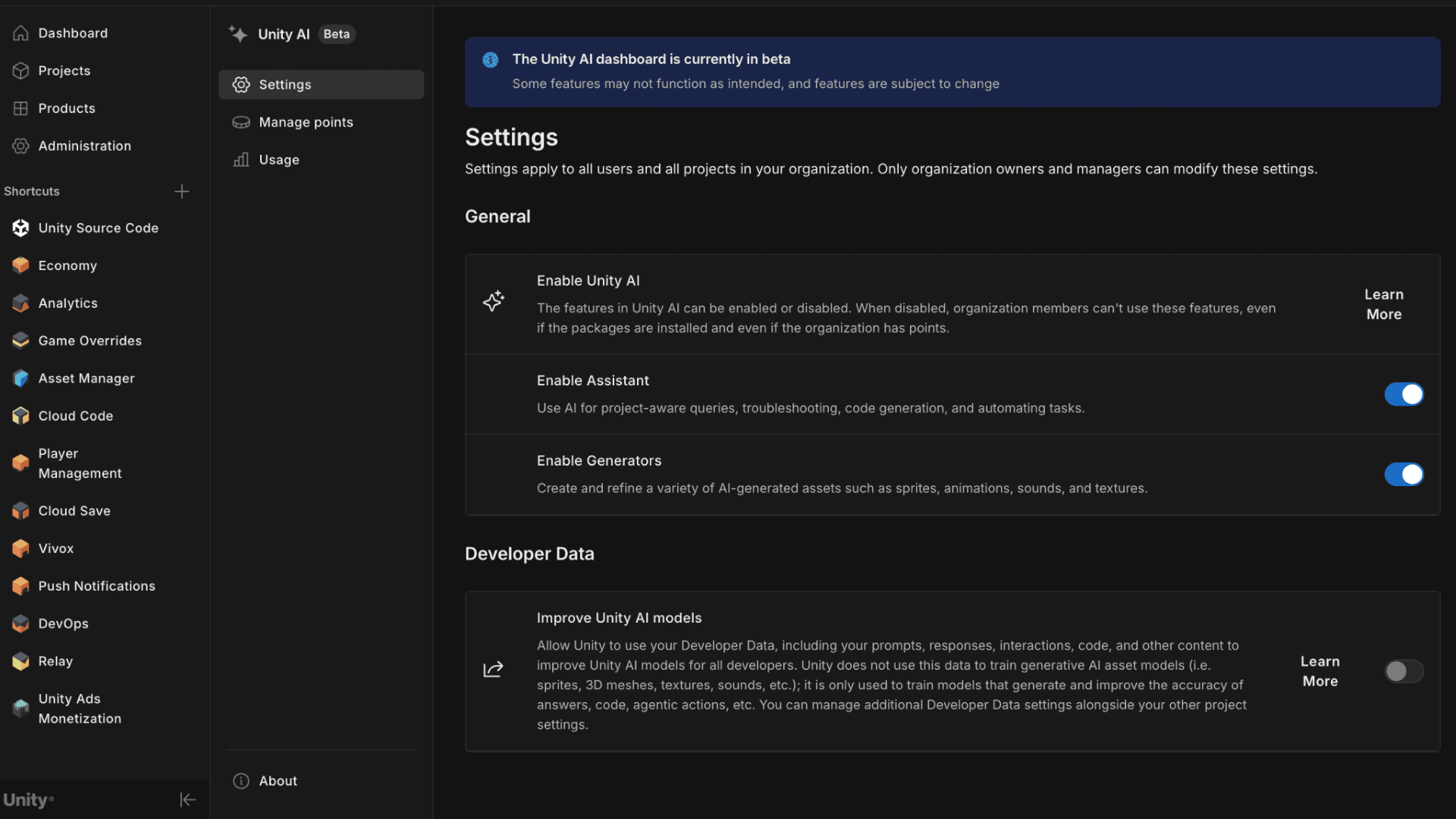
- Settings
- These settings apply to all users and all projects in your organization and only organization owners and managers can modify them. In the future, we will consider adding optional project-specific, or user-specific settings and data here.
- Enable Unity AI - This setting is ON by default. Features of Unity AI can be enabled or disabled for the organization depending on your company's policies for AI. The separate toggles for the Assistant and Generators can be changed at any time. When disabled, organization members can’t use the features in Unity AI, even if the packages are installed and even if the organization has credits. This setting does not affect the expiration or renewal of credits, or the availability of the Sentis features.
- Improve Unity AI - This setting is OFF by default. You can allow Unity to use your Developer Data, including your prompts, responses, interactions, code, and other content to improve Unity AI models for all developers. Unity does not use this data to train generative AI asset models (i.e. sprites, 3D meshes, textures, sounds, etc.); it is only used to train models that generate and improve the accuracy of answers, code, agentic actions, etc.
- Usage
- The Usage page within the Unity Dashboard allows you to see usage reporting of the AI tools by query and generation type over time. In the future we’ll provide more nuanced reporting.
- Manage Credits
- This page within the Unity Dashboard allows you to see your Unity Credits subscription (if any) and one-time credits purchases, and how many Unity Credits are remaining.
Project Settings
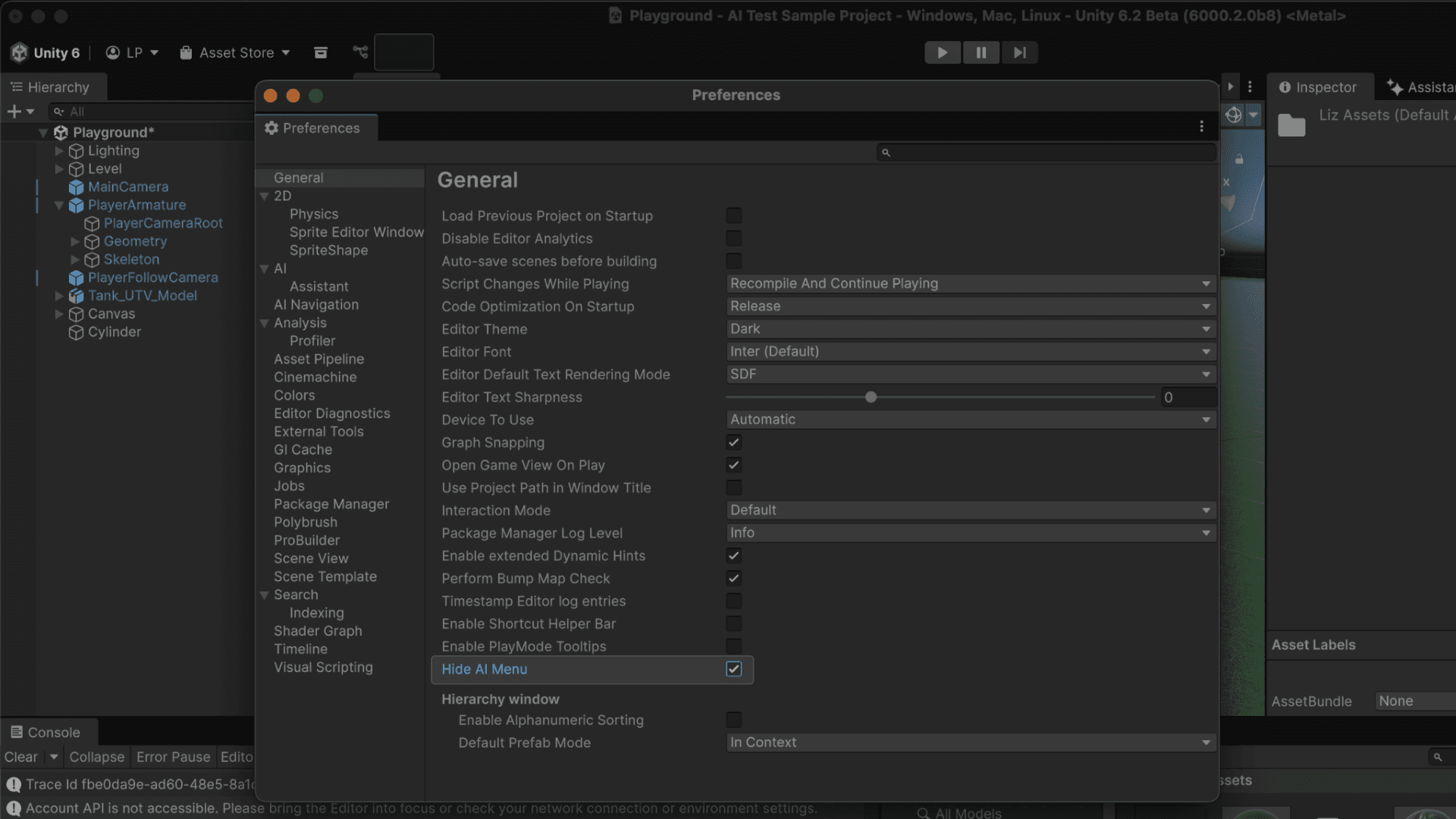
Hide AI menu button - The AI menu button displays by default in the toolbar in Unity Editor version 6000.0.76f1 and later. You can optionally hide it with this setting in the Editor General Settings on 6000.0.76f1 and later.
If you have needs for additional data controls, settings, customizations, please share them in the Unity Al Discussions.
Curated models
Unity’s AI tools provide a foundation so that the Unity Editor can be the assembly point AI model for last-mile Al model integration. This single economy for AI means curated models are integrated in one place, so you don’t need to do any setup, subscription management, or tool-switching outside Unity. As a major benefit, you don’t need to subscribe to a stack of various vertical tools with their own credits that may only be needed at specific times of your game production cycle.
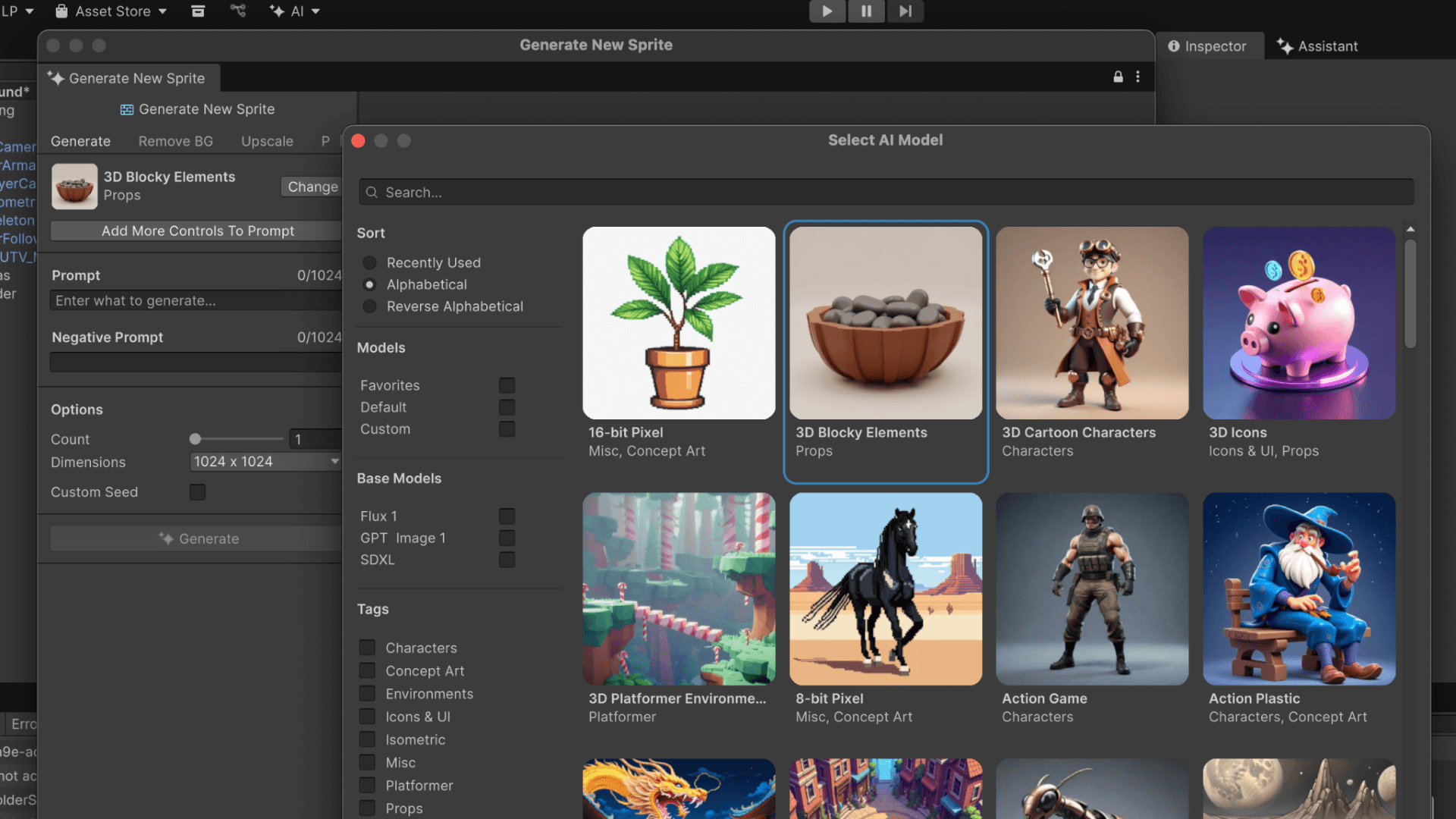
We may change and upgrade model providers and models over time to add to the functionalities so you always have the state-of-the-art capabilities without needing to be an AI model expert yourself.
Some integrated models are hosted on Unity’s first-party server infrastructure, and some are hosted on third-party infrastructure and accessed via a partner API (“Partner Models”). Here is a list of all models that are integrated, which may change over time at Unity’s discretion:
In-editor Al assistant
The in-editor AI Assistant uses large language models (LLMs) to answer user questions, generate code, and run agentic actions such as modifying a large number of files.
Generators
The generators use several first-party (Unity) and Partner Models to generate and refine assets. Here are the measures we have taken in working with Partner Model providers:
- Provider labels: We indicate which provider offers the Partner Model you are generating from, and, if relevant, the foundation model behind it. This is displayed in the selected model section of all generators, and in the model details page of the model picker view.
- Data ownership: You own all your input and output data when using Unity’s AI tools, regardless of the Partner Model that is used.
- Data transfer: We send your anonymized Developer Data, including prompts, reference assets, etc. to these Partner Model providers for the sole purpose of running the services. Your data is deleted by Partner Model providers after generation, but some information may be temporarily retained for operational purposes like debugging.
- Model training: Partner Model providers do not train their models with your Developer Data, even if you enable “Improve Unity AI” in the Unity cloud dashboard settings.
- Blocks: Certain Partner Models block prompts using text-matching lists, contextual references, vision models, and other means to detect queries that have a probability of generating IP/copyright infringing or otherwise illegal assets. In some cases, this will result in a null response or blank image from an asset generator, or a user message that you must modify your prompt to proceed. In these cases, Unity’s AI tools respect the policies of individual Partner Models.
- Traceability: As stated previously, all assets generated are tagged with “Unity AI” metadata, enabling searchability, and therefore traceability. You can easily search, track, and audit AI-generated content across their project, making it easier to identify placeholders and remove generated assets as needed to comply with rights and commercial considerations.
The Partner Models used to power the Generators, as well as the applicable license agreements to which you must agree to use the Generators, are set forth at Third-Party AI Terms. Providers, models and asset types may change over time, so check the above link regularly for the latest status.
Unity users are ultimately responsible for ensuring that their use of Unity’s AI tools complies with our acceptable use principles (see our Terms of Service and Unity Services Content Transparency). Importantly, you are responsible for ensuring your use of Unity’s AI tools and any generated assets do not infringe on third-party rights and are appropriate for your use. As with any asset used in a Unity project, it remains your responsibility to ensure you have the rights to use content in your final build.
If you have ideas for how Unity can implement or further promote responsible use of AI, please share them in the Unity Al Discussions.
Sentis
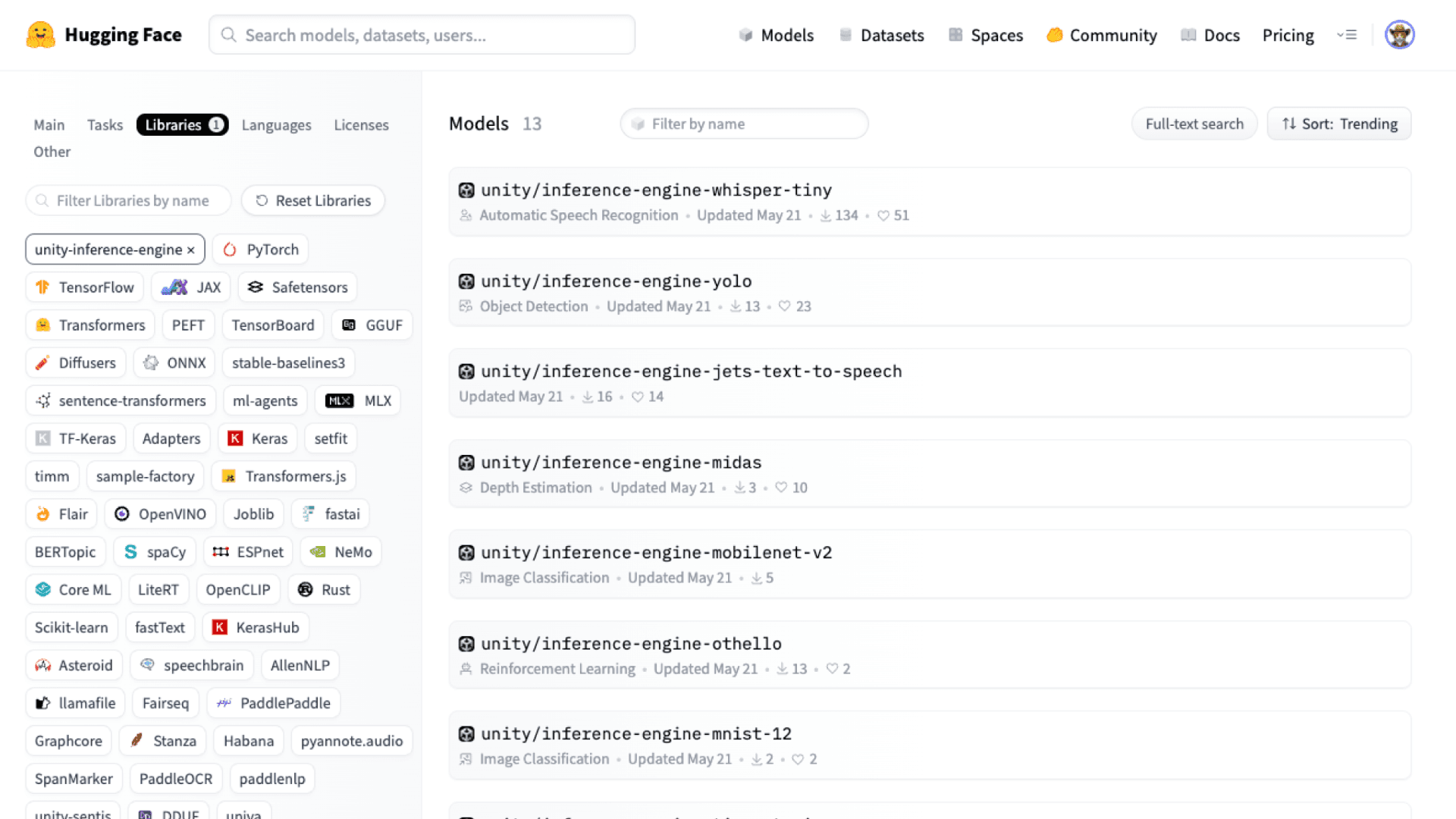
Unity Sentis enables you to run AI models on your local machine in the Unity Editor, or on end-user devices in the Unity runtime. No data from these models are stored or transferred to the cloud, and inference is done entirely on local compute. Unity Sentis does not include its own models, but imports and runs your own custom-trained models, or models from collections like Hugging Face. See our documentation for further information and supported workflows.
If you have ideas for new models that Unity should integrate, or new ways we can allow you to integrate AI yourself, please share them in the Unity Al Discussions.
If you have any questions about these product principles, please contact support@unity3d.com.