Video tutorials: The Input System in Unity 6

This seven-part video series on the Input System in Unity 6 covers the Actions editor, scripting, mobile controls, UI Toolkit, rebinding, Player Input Component, and Input Manager.
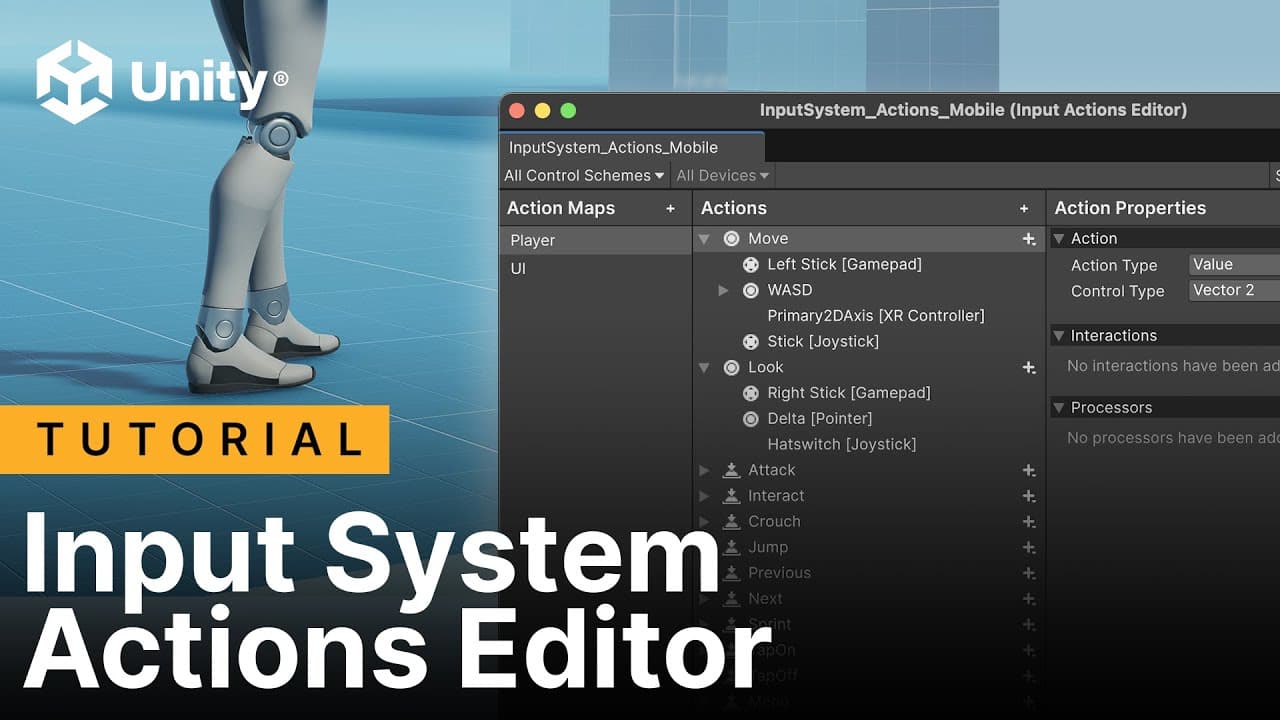
The first video covers how to get started with Unity’s Input System and introduces some of its core concepts. You’ll learn how to install the Input System into your project, understand the concept of Input Actions, and how to use the Input System Actions Editor to bind them to various inputs, such as keys, gamepad buttons, and mouse axes.
The second video covers scripting with the Input System to control a third-person character. You'll learn how to write code to move and jump the third-person character using an Input System Asset, with support for both gamepad and mouse-and-keyboard inputs.
The third video covers how to add mobile touch controls to your game using Unity’s Input System. You’ll learn how to use the On-Screen Stick and On-Screen Button components to set up on-screen controls for mobile devices, enabling touch-based input for third-person character movement.
The fourth video covers how to integrate the Input System with UI Toolkit to navigate and interact with the UI using a series of buttons. You’ll also learn how to use gamepad controls to toggle between different button collections, enabling seamless switching on and off.
The fifth video covers in-game rebinding, a feature that lets players customize their input controls during gameplay. You’ll also learn how to save these custom bindings using PlayerPrefs, an easy way to ensure your settings persist between game sessions.
The sixth video covers preparing a local multiplayer scene, where two or more players share the same computer and screen but use separate controllers. We’ll dive into how to configure and script for the Player Input component, including its behaviors for communicating with your scripts – both Broadcast Messages and by invoking events.
The seventh video covers local multiplayer games, where two or more players share the same computer and screen while using separate controllers. You’ll learn how to use the Player Input Manager component to enable multiple players to control different characters in a local multiplayer setup. We’ll demonstrate this with examples, including a local co-op setup, a split-screen configuration, and a two-player scenario.