CICD Made Easier with Unity CLI
CI/CD pipelines tend to grow organically. What begins as a script that opens the Unity Editor and starts a build gradually takes on more responsibilities: finding the correct Editor executable, installing platform modules, managing licenses, collecting test results, handling signing credentials, and cleaning everything up when the job finishes.
The result may work, but it can be difficult to understand and even harder to reproduce. The pipeline depends not only on the code in its configuration file, but also on everything that happens to be installed and configured on the runner.
The new Unity CLI provides a simpler way for automation to work with Unity. It gives build systems a consistent unity command for installing Editors, running tests, producing builds, and managing licenses. It is designed for terminal and automation workflows, including non-interactive installation, structured output, and clear exit codes. (unity.com)
This does not replace your CI provider or your project’s build code. Instead, it reduces the custom machinery needed to connect the two.
Simplify: express what the pipeline needs to do
Before the Unity CLI, most CI pipelines launched the Unity Editor executable directly. A simplified test command might look like this:
UNITY_PATH="/opt/unity/editors/6000.2.10f1/Editor/Unity"

"$UNITY_PATH" \
  -batchmode \
  -nographics \
  -quit \
  -projectPath "$PWD" \
  -runTests \
  -testPlatform EditMode \
  -testResults ./results/editmode.xml \
  -logFile -
There is nothing inherently wrong with this approach. The challenge is everything that has to happen around it.
The pipeline has to know where the Editor is installed. Another script or machine image needs to ensure that the requested version is present. The runner must also have the right platform modules, licensing configuration, and environment variables. Windows, macOS, and Linux runners may each need slightly different paths and setup logic.
The command runs the tests, but the pipeline around it owns a lot of Unity-specific implementation details.
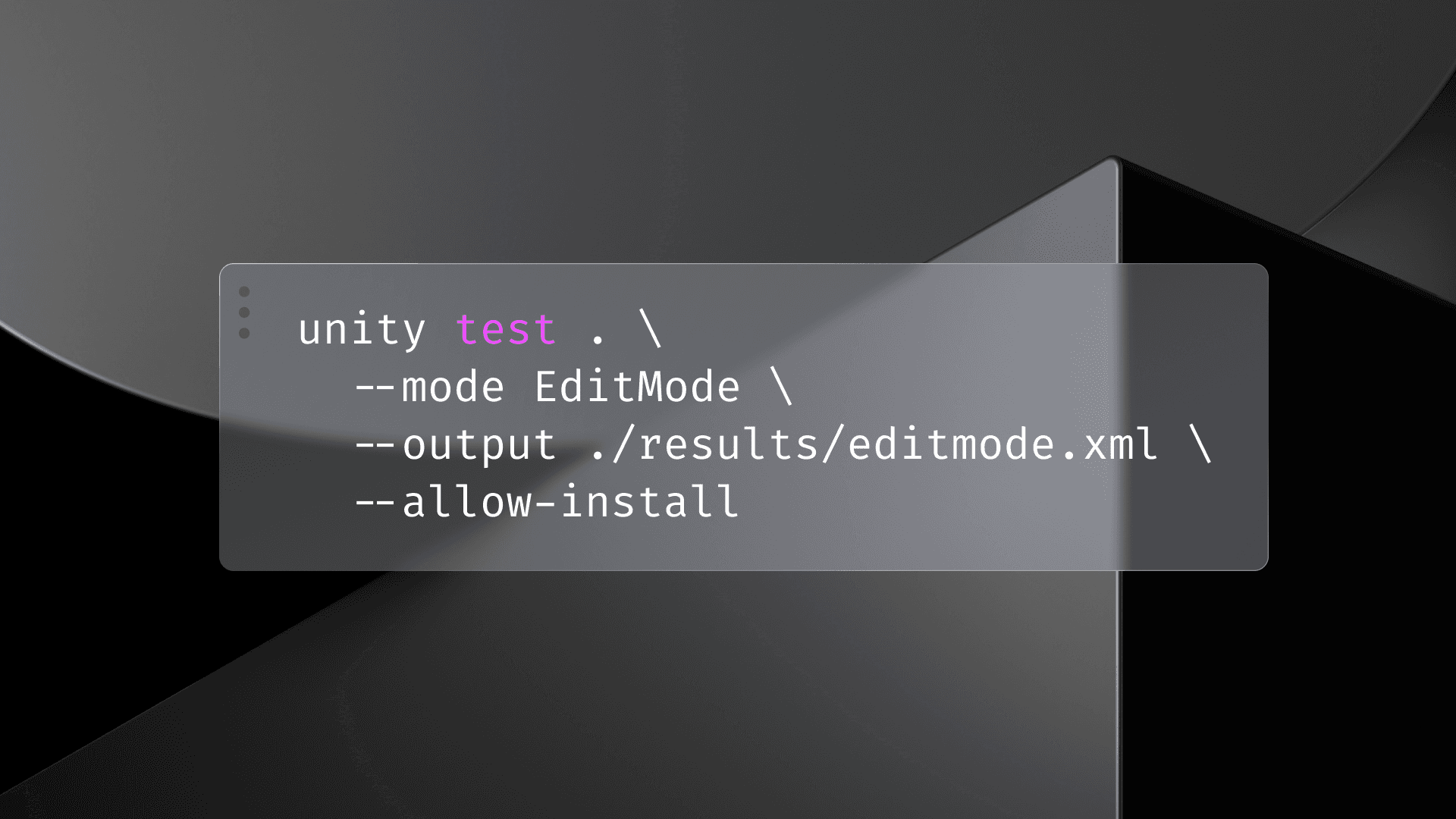
With Unity CLI, the same step can be expressed in terms of its intent:
unity test . \
  --mode EditMode \
  --output ./results/editmode.xml \
  --allow-install
This tells the pipeline to run the project’s EditMode tests and write the results to an NUnit XML file. With --allow-install, the CLI can read the Unity version required by the project and install it if necessary. The project, rather than the build machine, becomes the source of truth for which Editor version to use.
Builds follow the same pattern. Previously, a build might invoke the Editor directly:
"$UNITY_PATH" \
  -batchmode \
  -nographics \
  -quit \
  -projectPath "$PWD" \
  -buildTarget Android \
  -executeMethod Builder.PerformBuild \
  -logFile -
With Unity CLI, the build is easier to read:
unity build . \
  --target Android \
  --execute-method Builder.PerformBuild \
  --output-path ./out/app.aab \
  --allow-install
Your existing Builder.PerformBuild method can remain responsible for the parts of the build that are specific to your project: selecting scenes, applying build settings, setting scripting symbols, assigning version information, or running studio-specific validation.
The CLI simplifies the automation around that method. The CI configuration no longer needs to know as much about locating and launching the Editor.
Put together, a CI job can go from a fresh runner to a tested build with a short sequence of commands:
# Install Unity CLI on macOS and Linux
brew install --cask unity-cli

# Install Unity CLI on Windows
winget install Unity.CLI

# Install a specific Editor and its Android module
unity install 6000.2.10f1 \
  -m android \
  --accept-eula \
  --yes

# Run EditMode tests
unity test . \
  --mode EditMode \
  --output ./results/editmode.xml

# Build an Android App Bundle
unity build . \
  --target Android \
  --execute-method Builder.PerformBuild \
  --output-path ./out/app.aab
Alternatively, the test and build commands can use --allow-install, removing the need for a separate Editor installation step when the project should determine the version.
The important change is not simply that the commands are shorter. It is that they communicate what the job is trying to accomplish. Someone reading the pipeline can see where Unity is installed, where tests run, and where the build is produced without having to decode a collection of Editor paths and batch-mode flags.
There will still be other parts to a production pipeline. Your CI provider still checks out the repository, injects secrets, restores caches, publishes test reports, and uploads artifacts. Unity CLI gives those systems a simpler and more consistent way to handle the Unity-specific steps.
Improve: remove risk from the pipeline
A simpler pipeline is easier to read and maintain, but simplification is only part of the benefit. By moving Unity setup and execution behind a consistent CLI, teams can also address several common sources of CI/CD risk.
The runner has the wrong Editor version
A pipeline that depends on a preconfigured machine also depends on that machine remaining correctly configured. Someone can update an Editor, remove a module, or change an installation path. A replacement runner may look identical in the CI dashboard while being subtly different underneath.
Those differences can be difficult to spot. The pipeline configuration has not changed, and the project has not changed, but the build suddenly behaves differently because the machine has.
Unity CLI lets the job declare the Editor and modules it needs:
unity install 6000.2.10f1 \
  -m android \
  --accept-eula \
  --yes
Or the job can use --allow-install and let the project’s ProjectVersion.txt determine the required Editor.
This makes the build environment part of the pipeline rather than an undocumented property of the runner. A branch that upgrades Unity can bring that requirement into CI with it instead of waiting for a build engineer to update every runner image.
It also makes ephemeral runners more practical. A new runner does not need to begin life as a carefully prepared Unity build machine. It can install the CLI and provision the required environment as part of the job.
CI behaves differently from developer machines
Provider-specific scripts can create a gap between local development and CI. When a job fails, a developer may receive a large Editor command containing paths and options that only make sense on the build runner.
Reproducing that failure locally requires translating the CI script into something that works on the developer’s machine.
Unity CLI narrows that gap because the same command can be used in both places:
unity test . \
  --mode EditMode \
  --output ./results/editmode.xml \
  --allow-install
The CI environment will still have differences—such as secrets, licensing, and artifact publishing—but the Unity-facing entry point stays the same.
That makes a failed job easier to investigate. A developer can copy the test or build command, run it from the project directory, and begin reproducing the issue without first reconstructing the runner’s Editor invocation.
Custom wrapper scripts become infrastructure of their own
Many studios have scripts that locate Unity installations, translate build targets into Editor arguments, stream logs, interpret exit codes, and move test results into the right directory.
These scripts are usually created for good reasons. Over time, however, they become another layer of infrastructure that needs to be tested and maintained. They may also be duplicated across projects or rewritten for each CI provider.
Unity CLI provides one entry point for common operations:
unity install
unity test
unity build
This does not mean every project becomes identical. Studios can—and should—keep project-specific logic where it belongs. A C# build method can continue to define how a game is built, while the CLI provides a standard way for automation to invoke it.
The boundary becomes clearer: the project owns the build, while the CI job owns when and where that build runs.
Failures are difficult to diagnose
A failed Unity job can generate a large amount of output. If test results exist only in the Editor log, developers may need to download and search that log to find the actual failure. On an ephemeral runner, useful diagnostic files can also disappear as soon as the job finishes.
unity test can write NUnit XML reports directly:
unity test . \
  --mode EditMode \
  --output ./results/editmode.xml
CI providers can ingest that report and display theI also uses defined exit codes and maintains CLI-specific also uses defined exit codes and maintains CLI-specific logs, helping automation distinguish test failures from other problems. (docs.unity.com)
The result is not merely more logging. It is more useful output in the places developers already look: the job log, the test report, and the build artifacts.
A pipeline can preserve the key outputs from each run:
results/editmode.xml
results/playmode.xml
out/app.aab
Editor.log
cli-log.json
This makes the pipeline easier to operate at scale. Developers can investigate routine test failures themselves, while build engineers retain the detailed logs needed to diagnose infrastructure problems.
Credentials and licenses outlive the job
Build runners often need access to sensitive material: service-account credentials, Android keystores, signing passwords, or offline license files. Long-lived machines can retain those files or environment changes between builds unless the pipeline performs careful cleanup.
A CLI-first workflow fits naturally with secret stores and ephemeral runners. Credentials can be injected as environment variables, used by the job, and discarded when the runner is removed.
Signing files can follow the same pattern. For example, an Android keystore can be stored as a base64-encoded CI secret, decoded only for the build, and deleted during teardown:
echo "$ANDROID_KEYSTORE_BASE64" \
  | base64 --decode > ./android.keystore

unity build . \
  --target Android \
  --execute-method Builder.PerformBuild \
  --output-path ./out/app.aab

rm -f ./android.keystore
Licensing can also become an explicit part of the job lifecycle. The runner activates a license before it performs Unity work and returns it when the job ends:
unity license activate --floating

# Run tests and produce builds

unity license return
Unity CLI supports activation and return workflows, including floating and offline licensing options. (docs.unity.com)
For ephemeral runners, the return command should be placed in an unconditional teardown step so it runs even when a test or build fails. That prevents failed jobs from leaving seats checked out and affecting later builds.
The pipeline is tied to one CI provider
Every CI platform has its own configuration language, but the Unity work inside the job should not have to change when the provider does.
A pipeline might use GitHub Actions, GitLab CI, Jenkins, Buildkite, TeamCity, or an internal orchestration system. Those systems will continue to manage scheduling, secrets, caches, and artifacts. The commands that test and build the Unity project can remain consistent:
unity test . --mode EditMode --output ./results/editmode.xml
unity build . --target Android --output-path ./out/app.aab
This does not make a CI migration effortless, but it reduces the amount of Unity-specific automation that must be rewritten. The provider runs the command; Unity CLI handles the interaction with Unity.
That consistency is also useful across projects. Build teams can establish common pipeline patterns without requiring every project to share the same internal build implementation.
Ultimately, Unity CLI does not change what a good CI/CD pipeline needs to accomplish. The pipeline still has to provision its environment, run tests, produce builds, protect credentials, publish useful output, and clean up after itself.
What changes is how much custom machinery is needed to make those steps work with Unity.
Instead of relying on hard-coded Editor paths, preconfigured runners, and increasingly complex wrapper scripts, teams can describe their intent using a small set of commands. The result is a pipeline that is easier to read, easier to reproduce, and less dependent on the state of a particular build machine.
Use Unity CLI to simplify the path from a clean runner to a tested build—and improve the reliability of everything along the way.